
Call 1300 885 420 or +61 444 532 161
iTandCoffee | Patient help with your personal and business technology
  • Home
  • About
    • About iTandCoffee
    • In the media
    • Testimonials >
      • Testimonials 2020-21
      • Testimonials 2019
      • Testimonials 2018
    • Privacy Policy
    • Other Policies
    • Prices
  • Classes
    • What's On
  • Appointments
  • Books | Videos | Tips
    • Books
    • Videos
    • Blog
    • Newsletter
    • Tips Library
  • Gift Vouchers
  • iTandCoffee Club
    • Members Area
    • About the Club
    • Membership Options
  • Store
  • Contact
  • Home
  • About
    • About iTandCoffee
    • In the media
    • Testimonials >
      • Testimonials 2020-21
      • Testimonials 2019
      • Testimonials 2018
    • Privacy Policy
    • Other Policies
    • Prices
  • Classes
    • What's On
  • Appointments
  • Books | Videos | Tips
    • Books
    • Videos
    • Blog
    • Newsletter
    • Tips Library
  • Gift Vouchers
  • iTandCoffee Club
    • Members Area
    • About the Club
    • Membership Options
  • Store
  • Contact
Search by typing & pressing enter

YOUR CART

Tips, Tricks and News 
about all sorts of technology in your life!

18/6/2015 0 Comments

Easily accessing your frequently used websites in Safari on your iPad and iPhone

Picture
Most of us have a set of websites that we want (or need) to visit on a regular basis.  For example, our bank's website, Taste.com (or other favourite recipe site), or perhaps a school website.

To make it easier to access your favourite websites on your iPhone and iPad, tell Safari which websites are actually your 'Favourites'.

That way, every time you tap the Search field at the top of the Safari screen, you will see you list of Favourite websites and be able to just tap one that you need.  This will save you typing its web address or Google-ing it each time you need it.

On your iPad, you can also enable something called the 'Favourites Bar' so that you can always see your favourite websites listed across the top, and just tap the name to go to that website.

Find out more about these feature of Safari on your iPad and iPhone in the below Handy Hints
  • Defining your Favourite websites in Safari
  • Easy access to your Favourite website in Safari

These hints will be available to all readers of the iTandCoffee newsletter for the week from July 19th 2015, after which it will only be available to iTandCoffee Club members.

Not yet a member of The iTandCoffee Club?  Find out more here!


Come along to an iTandCoffee Class for more great tips like this!

This is one of the great tips we cover in the Introduction to the iPad and iPhone series of classes.  

The next series will start on July 14th 2015 - click here for more details or to book.  For details of other great iTandCoffee classes, check out the class schedule here.

Related Article (available to all readers)

  • Is your iPad/iPhone's Safari storing all your Passwords for anyone to see?

Related Handy Hints (available to iTandCoffee Club members only)

  • Handy Hint 13:  iPhone, iPad Navigation - Get back to top of a list or a page really quickly
  • Handy Hint 44: Navigating when On Safari!
  • Handy Hint 46: Getting to places on Safari quickly - your favourite web page as an App!
  • Handy Hint 52: Saving PDFs to your iPad or iPhone
  • Handy Hint 65: My Safari uses Yahoo (or Bing) - how can I make it use Google?
  • Handy Hint 66: How do I limit the web pages returned in Safari to recent Australian pages
  • Handy Hint 68: How to create a PDF from any web page - on your iPad, iPhone or Mac!
  • Handy Hint 73: Is there a quick way to close all open tabs in Safari
  • Handy HInt 75: Getting back a Safari page you accidentally closed
  • Handy Hint 76: Finding some text on a Safari Page
  • Handy Hint 103 - Dealing with a Mac web browser that has been hijacked by Ads
  • iOS 8: 'Tab view' in Safari on iPad - easier management of your open pages/tabs 
  • iOS 8: An easier way to close web pages
  • iOS 8: Clearer Indication of Reader View availability 
  • iOS 8: Easy way to choose to view 'mobile' format web page in 'desktop' format
  • iOS 8: Quickly add a web page to your set of Favourite pages
  • iOS 8: Use Camera to scan and enter credit card information
  • iOS 8: Shared Links for your RSS feeds!
  • iOS 8: Private browsing per page and Private Browsing always
  • iOS 8: Safari Saved Passwords in Native apps
0 Comments

18/6/2015 0 Comments

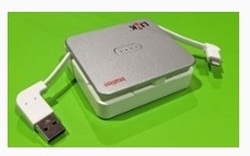
A great accessory for travelling with your iPhone and iPad - battery charging, backup and extra storage for your i-Device
Picture
If you are looking for a device that allows you to back up photos while travelling, store addtional data (such as movies) and even charge your iPhone and iPad, this device might be worth checking out.

It is called the Imation Link Power Drive.  Here is an article about it, published in The Age on June 15 2015.
  • Hands on review: Imation Link Power Drive

Our 'Travel with your iPad & iPhone' class has even more great travel tips

This is one of the great tips we cover in the Travel with your iPad and iPhone class.  

The class will next be held on July 25th 2015 - click here for more details or to book.  For details of other great iTandCoffee classes, check out the class schedule here.

If you are travelling before the date of the next class, so are keen to attend this class on an earlier date, email iTandCoffee on [email protected] or call 1300 885 420.

0 Comments

18/6/2015 0 Comments

Have you discovered the 'Do Not Disturb' function on your iPad and iPhone?

Picture
This tip has featured in a past Handy Hint, but I know that many iTandCoffee clients and subscribers have not yet discovered it.  

Your iPad and iPhone have a feature called Do Not Disturb, found in your Settings.  

Its purpose is to allow you to tell your device to turn off any sounds and notifications - similar to the 'mute' function, but with more features than the basic muting.

Do Not Disturb can be turned on and off manually whenever you need, from the Control Center (by swiping up from below the bottom of the screen).  

But the feature I love about Do Not Disturb is that it can be set to occur on a schedule - for example every night between 10pm and 7am.  

By putting your Do Not Disturb on a schedule, you can stop any noises waking you while you sleep.  But it also allows you to make an exception for certain callers and can cater for 'emergency calls', where someone keeps trying to call you.

Why not check it out, in Settings -> Do Not Disturb.

If you are an iTandCoffee Club member, you can find out more information about this feature in the below handy hint video.
  • Stopping your device from disturbing you                   

Not yet a member of The iTandCoffee Club?  Find out more here.

Come along to an iTandCoffee Class for more great tips like this!

This is one of the great tips we cover in the Introduction to the iPad and iPhone series of classes.  

The next series will start on July 14th 2015 - click here for more details or to book.  For details of other great iTandCoffee classes, check out the class schedule here.


0 Comments

17/6/2015 0 Comments

Swipe a draft email out to the way so that you can check another on your iPad or iPhone

Related Articles by iTandCoffee (available to all readers)

Picture
I saw a client yesterday who was not aware of this handy feature of Mail that was introduced on the iPad and iPhone in iOS 8.

If you have started an email, but realised that you need to go back and check another email, it is no longer necessary to save it as a draft to get it out of the way.

The new email can be dragged to the bottom of the Mail screen, allowing you to continue with other Mail activities until you are ready to return to your Draft.  The Draft can be retrieved by just tapping on it at the bottom of the screen.

iTandCoffee Club members can find out more and view a demonstration in the below handy hint.
  • Move a draft email out of the way to look at other mail

Not yet a member of The iTandCoffee Club?  Find out more here.


Come along to an iTandCoffee Class for more great tips like this!

This is one of the great tips we cover in the Introduction to the iPad and iPhone series of classes.  

The next series will start on July 14th 2015 - click here for more details or to book.  For details of other great iTandCoffee classes, check out the class schedule here.


  • How to solve the problem with sending your Bigpond mail - before you travel!
  • Where is the trash can for my Gmail emails!!??
  • Sending a mail message to a group on your iPhone or iPad - is there a way?
  • Are you finding it hard to control your 'Swipe' in Mail iOS 8?
  • When non-junk mail is suddenly junk

Related Handy Hints (for iTandCoffee Club members only)

  • Handy Hint 4:   Quick access to Drafts in Mail on iPad & iPhone 
  • Handy Hint 10: 'Save The Date' provided in an email or message
  • Handy Hint 13:  iPhone, iPad Navigation - Get back to top of a list or a page really quickly
  • Handy Hint 23: A new email feature - 'Send Again'  
  • Handy Hint 24: Oops - I didn't mean to delete that!  How to undo.
  • Handy Hint 25: How can I save documents and photos that I get in emails?
  • Handy Hint 36: Getting rid of the 'Sent from my iPad' and 'Sent from my iPhone' 
  • Handy Hint 52: Saving PDFs to your iPad or iPhone
  • Handy Hint 56: A nifty trick for deleting all mail from a mailbox!
  • Handy Hint 57: Understanding Mailboxes in Mail
  • Handy Hint 59: My iPhone (or Mac) knows people's email addresses but my iPad doesn't!
  • Handy Hint 74: Why can't I send my emails when I am overseas or just away from home?
  • iOS 8 Tip: New Swipe gestures when previewing mail
0 Comments

16/6/2015 1 Comment

Warning for those who use LastPass as their Password Keeper

Picture
iTandCoffee regularly espouses the value of apps that provide you with a 'Password Keeper' or 'Password Safe', where you can keep all your passwords safely stored behind a single password.  

This means that you only need to remember that single password to gain access to all the rest, allowing you to set up strong and different passwords for each of the systems, sites and services that you use.

One such password keeper is called LastPass, a free app that stores your 'password safe' online on the LastPass server, protected by a Master Password that you use to open this online safe.  

Other password keeper apps, such as 1Password and OneSafe store your password safe on your device, with a Master Password that is only known to your device and is not stored online.

I prefer the second style of password keeper, because I have always been nervous about storing my valuable set of passwords online - in case of attack by hackers targeting the site that holds my password safe.

Well, it appears that such a breach by hackers has occurred this week with LastPass, where Master Passwords (as well as email addresses and other information) were 'compromised'.

LastPass is notifying users of the service if they need to reset their Master Password, and to also change their password on any other online account that uses the same password.

Here is the full article from MacWorld this week.
1 Comment

16/6/2015 0 Comments

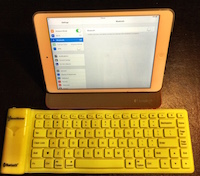
Turn your iPad (or iPad) into a laptop by adding a Bluetooth keyboard

Picture
If you use your iPad or iPhone to type lengthy pieces of text, you may find yourself wishing you had a 'proper' keyboard - instead of the on-screen keyboard. 

There are some great Bluetooth keyboards out there - even relatively cheap keyboards like that shown in the images, that can roll up and fit in a small purse!  Great for travelling or carrying around in a briefcase.

Check out this recent article for details of how to connect a Bluetooth keyboard to your iPad or iPhone.

  • How to Connect a Bluetooth Keyboard to Your iPad


0 Comments

16/6/2015 0 Comments

Keyboard Shortcuts on my iPhone really helped me while travelling

Picture
There are some phrases - words, sentences, ID codes, email addresses - that we need to type over and over, sometimes more than once each day.  

Wouldn't it be easier to just type two or three letters, and have the longer phrase automatically appear, saving you all that typing effort?

While I was away recently, I lost count of how many times I had to enter my email address, my Qantas Cash account number, passport number and overseas mobile phone number.  

My email address was not a problem, as all I had to enter was the series of letters litc, which would magically convert to [email protected].  But it was driving me crazy having to look up the other numbers each time I had to enter them - especially the mobile number.

My frustration was solved by setting up each of these frequently entered numbers/codes as Keyboard Shortcuts - something that I had already done for my email address.  My passport number would then appear whenever I typed pn, qn would give my my Qantas Cash account number, and omn gave me my overseas mobile phone number.

If you, like me, want to avoid excess typing and the need to look up certain numbers and codes* over and over, it is definitely worth taking the time to set up Keyboard Shortcuts in your Settings.  

Find out how to do this in this iTandCoffee Handy Hint for iTandCoffee Club members.

Not yet a member?  Find out more here.

(*Note.  Do not set up your passwords as Keyboard Shortcuts - this is not a secure way of storing and recalling passwords.  The best place to store your passwords is in a Password Safe app like 1Password.)

Come along to an iTandCoffee Class for more great tips like this!

This is one of the great tips we cover in the Introduction to the iPad and iPhone series of classes.  

The next series will start on July 14th 2015 - click here for more details or to book.  For details of other great iTandCoffee classes, check out the class schedule here.


0 Comments

9/6/2015 0 Comments

Apps that help you identify plants

Picture
A friend on Facebook today posted a suggestion for an App that can identify plants from a photo.  

What a great idea. The app she had seen was called PlantNet (link below).

This prompted me to check out what other Plant identification apps are available in the Australian App Store.  Here is a list of what I found in my quick peruse.

  • PlantNet (Free - no ratings yet)
  • Leafsnap  (Free - 3 stars)
  • Garden Answers Plant - Disease Identifier (Free - 4.5 stars)
  • LikeThat Garden – Flower Identification (Free - no ratings yet)
  • Native Plant Guide ($10.00, 3 stars)
  • FlowerChecker, plant identification ($1.29 with in-app purchases, no ratings yet)
  • NatureGate (Free - no ratings)

Note.  App ratings are from zero to 5 stars.


Now, I haven't checked out any of these - I am not a gardener myself - but I will be showing this list to my gardener husband, as I'm sure he'll be interested in trying out one or more.

If you do try out any of these apps and can recommend (or warn against) any of them, please leave a comment against this blog post.  Or if you know of any others, please feel free to share their details.

Happy gardening!

0 Comments

5/6/2015 0 Comments

I can't wait to put together a photo book of my trip!  Why not join me?

Picture
I am just about to undertake some post-trip therapy, by commencing work on a digital photo book of our trip.  

I will be setting aside time over the next month or two to work on this book (which might end up being multiple books, given how many photos we took in the 7 weeks away).

For those of you who have already attended the 'Make a Digital Photobook' class at iTandCoffee and would like a bit of a refresher - or just to get some assistance with your own book - why not join me to make your own photo book while I make mine!  

Below are the dates that I am proposing to set aside for this activity.  Just fill in the below form with the date/s that you would like to come, and with your contact details.  I will then send a confirmation email prior to the date.  Cost will be just $20 per date, including tea and coffee.

Submit

Learn how to create a Digital Photo Book

For those of you who have never made a digital photo book before, iTandCoffee is running the 'Make a Digital Photo Book' class during June and July 2015.   

Click/tap the below button to see the dates for these classes and to book.

Create a digital photo book
0 Comments

5/6/2015 0 Comments

So many tips to share about travelling with your technology

Picture
The iTandCoffee 'Travelling with your iPad and iPhone (and other technology)' class was already full of great tips about travelling with technology.

After our 7 weeks overseas, travelling with 2 iPhones, 2 iPads and a Macbook Air, I now have so many more great tips to share about this subject at classes scheduled in June and July.
  • Options for booking accommodation etc online
  • Ensuring you have all your essential trip information at your fingertips
  • Making sure you have phone access while travelling
  • Essential accessories to take
  • Options for accessing internet while you travel
  • Options for finding your way around when you don't have internet
  • Some apps that came in really handy
  • How to ensure your devices always have battery charge
  • Ensuring your precious photos are backed up
  • Sharing your photos with family and friends
  • Sanity saving tips
  • A pre-trip check list
  • Accessing Australian TV while away
  • Online safety while travelling.

So, if you have plans for a trip in the near future and plan to take your technology along, join iTandCoffee during June and July for this great two-hour class.   

Select the button below to find out dates for this class and to make a booking.

Travelling with your iPad/iPhone (and other technology)
0 Comments
<<Previous
Forward>>

    Receive great articles like this 
    fortnightly to your Inbox

    Picture

    Follow us on Facebook

    iTandCoffee

    Picture

    Join the iTandCoffee Club

    ​for free content, tutorials, videos, classes, offers, discounts and more

    Join our growing community of local and online members who love learning about their technology - through FREE club sessions, remote/phone support, online tips, tricks and tutorials, special members-only offers and discounts, and more. Membership starts at only $49/year.
    Find out more about The iTandCoffee Club

    What's on at iTandCoffee ?

    Below is our list of videos, classes and other events that are coming up soon.
    ​Videos shown are offered for eligible members of the iTandCoffee Club.
    If you have questions, why not join fun and informative 'user group' meetings, held once a month.
    All iTandCoffee classes are run as online classes (using Zoom), which means you can attend from anywhere.

    Archives

    April 2026
    March 2026
    February 2026
    January 2026
    December 2025
    November 2025
    October 2025
    September 2025
    August 2025
    July 2025
    May 2025
    April 2025
    March 2025
    February 2025
    December 2024
    November 2024
    October 2024
    September 2024
    August 2024
    July 2024
    June 2024
    May 2024
    April 2024
    March 2024
    February 2024
    January 2024
    December 2023
    November 2023
    October 2023
    September 2023
    August 2023
    July 2023
    June 2023
    May 2023
    April 2023
    March 2023
    February 2023
    January 2023
    December 2022
    November 2022
    October 2022
    September 2022
    August 2022
    July 2022
    June 2022
    May 2022
    April 2022
    March 2022
    February 2022
    January 2022
    December 2021
    November 2021
    October 2021
    September 2021
    August 2021
    July 2021
    June 2021
    May 2021
    April 2021
    March 2021
    February 2021
    January 2021
    December 2020
    November 2020
    October 2020
    September 2020
    August 2020
    July 2020
    June 2020
    May 2020
    April 2020
    March 2020
    February 2020
    January 2020
    December 2019
    November 2019
    October 2019
    September 2019
    August 2019
    July 2019
    June 2019
    May 2019
    April 2019
    March 2019
    February 2019
    January 2019
    December 2018
    November 2018
    October 2018
    September 2018
    August 2018
    July 2018
    June 2018
    May 2018
    April 2018
    March 2018
    February 2018
    January 2018
    December 2017
    November 2017
    October 2017
    September 2017
    August 2017
    July 2017
    June 2017
    May 2017
    April 2017
    March 2017
    February 2017
    January 2017
    December 2016
    November 2016
    October 2016
    September 2016
    August 2016
    July 2016
    June 2016
    May 2016
    April 2016
    March 2016
    February 2016
    January 2016
    December 2015
    November 2015
    October 2015
    September 2015
    August 2015
    July 2015
    June 2015
    May 2015
    April 2015
    March 2015
    February 2015
    January 2015
    December 2014
    November 2014
    October 2014
    September 2014
    August 2014
    July 2014
    June 2014
    May 2014
    April 2014
    March 2014
    February 2014
    January 2014
    December 2013
    November 2013
    October 2013
    September 2013
    August 2013
    July 2013
    June 2013
    May 2013
    April 2013
    March 2013
    February 2013
    January 2013
    November 2012
    October 2012
    September 2012
    August 2012
    May 2012

    Categories

    All 1800-number Accessibility Accessories Activity Monitor Adobe Adware AI Airdrop Airplay Airpods Alarms Alerts Android Apple Account Apple Id Apple-id Appleid.apple.com Apple Music Apple News Apple Pay Apple Pencil Apple Tv Apple Watch Apps App Specific Passwords App Store App Windows Apss Audio Autolock Automatic-downloadsupdates Automator Backup Backups Battery Be-connected Be-connected Bigpond Big Sur Bitcoin Bitlocker Blockchain Bluetooth Booklet Books Boot Camp Budgetting Business Buying Guide Calendar Camera Canva Captcha Catalina Cellular Data Centrelink Channel 9 Charging ChatGPT Christmas Chrome Classes Client Stories Clipboard Cloud Cloud-storage Cloud-storage Club Club News Colours Com Compass Contacts Continuity Control-center Control Centre Convert Cookies Copilot COVID COVID 19 COVID-19 Cybersafety Datad777f385d3 Data Usage Delete Desktop Dictation Dock Do Not Disturb Downloads Dropbox DVD Education El-capitan Email Emergency Emojii Encryption Entertainment ESIM Ethernet Evernote Excel Facebook Family Family History Files Finance Finder Find My Find My Car Find-my-iDevice Fingerprint Sensor Fonts Force Reboot Forgetting Curve Fraud Free Friday Gift Ideas Gmail Google Google Drive Google Flights Google Photos Google Sheets Government Services Guides Handbrake Handoff Handy Hints Hard-drive-crash HDD Health High Sierra Home Button Homepod Home Screen Hotmail Housekeeping Humour ICloud ICloud Backup ICloud Drive ICloud Family ICloud Photo Library Identity Identity Theft Images Image-to-text IMAP IMessage Imovie Instagram Internet Internet Issues Internet-options Internet-options Ios Ios-11 Ios-11 Ios-12 IOS 13 IOS 14 IOS 15 IOS 16 IOS 17 IOS 18 IOS 26 Ios Photos IPad Ipad-tips Iphone Iphone-12 IPhone 13 IPhone 16 Iphone-8 Iphone8 Iphone Basics Iphone-calendar IPhone Mirroring Iphone Settings Iphone-x Iphonex Ipod Itandcoffee Itandcoffee Club Itandcoffee News Itandcoffee Services Itandcoffee-swap-shop Itandwine Itunes Junk Keyboard Keychain Kids And Technology Kidsandtechnology Lifestyle Lock Screen Mac Mac-basics Mackeeper Mac Mail Mac-mail Mac-monday Macos MacOS 26 MacOS Sequoia Mac Photos Mac-photos Mac Storage Mac Tutorials Mac-videos Magnifier Magsafe Mail Malware Maps Measure Media Medical-id Messages Messenger Microphone Microsoft Microsoft 365 Mobile Banking Mobile Data Mobile-data Mobile Porting Mojave Monterey Motion Mouse Movies Multitasking Music MyGov My-health-record Navigation NBN Netflix Notes Notifications Number Porting Office 365 Onedrive Onenote Online Safety Online-safety Optusnet Os-x Outlook Pages Parental Controls Passwords Paypal PDF Personal Hotspot Phishing Phone Photo Book Photo-books Photos Photos On Mac PLAYLIST Podcasts Popups Powerpoint Preview Printing Privacy Productivity Product Launch Publicity Publicityads57a389ac69 Publisher Purchasing-an-idevice Qa QR Code Quicktime Raise-to-wake Ransomware Reachability Reboot Recommendations Recovery Relay Reminders Remotewipe Repairs Restore Restrictions Rings Rotation-lock Router Safari Safari-favourites Samsung Santa Scam Scam Email Scams Scan Scannable Scanning School-ipad Scoopit Screen Screen-brightness Screensaver Screenshots Screen Time Scrolling Secondhand-devices Security Sell Seniors Seo Services Sessions Settings Share Shared-calendar Shop Shopping Shortcuts Sierra Signature Silent-auction Sim Siri Skype Slideover Slides Slideshow Slideshows Slow-device Slow-mac Smart-tv Sms Snapfish Social Media Socialmedia Software Update Softwareupdate Software Updates Sonoma Sounds Spam Spinning-beachball Split Screen Split View Spotlightsearch Startup Storage Storage Space Streaming Subscriptions Sunrise Switch Symbols Sync System Preferences Task Manager Tasks Task-switcher Taskswitcher Teams Technology Technologyarticles Technologydependency Technology-lifestyle Technology-solutions Technologytips Techsupport Telco Telcos Telstra Telstracomplaint Text Text Replacements Theft The-katering-show Thermomix Thesenior Timemachine Time-to-leave Tio Toys Trackpad Training Videos Transcribe Translate Travel Travel Sim Tripadvisor Troubleshooting Tutorial Tutorials TV Two Factor Authentication Twofactor-authentication Two-step-verification Typing Typing Shortcuts Undo Universal Control Unlock Update Updates Upgrade Uppercase Usage User Group Utilities Ventura Video Video-blog Videos Virus Voice-and-data Voicemail Voice-memos Volume Vpn Wallet Wallpaper Warnings Weather Web Browser Website Weebly Whatsapp Widgets Wi-fi Wi-Fi Wifi Wifi084d04ddac Wifi-calling Windows Windows 10 Windows10 Windows 11 Word Wordpress Worldclock Yosemite Youtube Zoom

    RSS Feed

​​Call  +61 444 532 161  or  1300 885 420

​to book an appointment or class, or to enquire about our services and products


Seniors Card Welcome
SENIORS CARD WELCOME HERE:
Seniors Card holders qualify for a 10%* discount on eligible classes booked and paid for online. 
To activate the discount at the time of booking, select Redeem Coupon or Gift Certificate and enter 10OFFSEN before selecting Pay Now
Seniors can also save $5** on the first full hour of appointments booked online. Enter Coupon Code of 
BASEN5 when booking to receive this discount.
* Some heavily discounted classes are excluded from the 10% class discount offer.
** Where more than one type of discount is available, only one type of discount can be used.

Services
Classes
Event Calendar
Private Appointments
Gift Vouchers
Remote support
​Business Services
​Help for families

Online Content
​Newsletter
User Guides
Video tutorials/classes
Tips and Hints
​Blog
iTandCoffee Club
About the Club
Free Club Sessions
Sign In/View Account
Members Area
Prices/Policies
Prices
Privacy
Cancellations, Refunds, Returns
About iTandCoffee
Home
About

​Contact us
Testimonials
In the press

Picture
​© 2012-2026 iTandCoffee Pty Ltd. All rights reserved  ACN: 606 340 434