Call 1300 885 420 or +61 444 532 161
iTandCoffee | Patient help with your personal and business technology
  • Home
  • About
    • About iTandCoffee
    • In the media
    • Testimonials >
      • Testimonials 2020-21
      • Testimonials 2019
      • Testimonials 2018
    • Privacy Policy
    • Other Policies
    • Prices
  • Classes
    • What's On
  • Appointments
  • Books | Videos | Tips
    • Books
    • Videos
    • Blog
    • Newsletter
    • Tips Library
  • Gift Vouchers
  • iTandCoffee Club
    • Members Area
    • About the Club
    • Membership Options
  • Store
  • Contact
  • Home
  • About
    • About iTandCoffee
    • In the media
    • Testimonials >
      • Testimonials 2020-21
      • Testimonials 2019
      • Testimonials 2018
    • Privacy Policy
    • Other Policies
    • Prices
  • Classes
    • What's On
  • Appointments
  • Books | Videos | Tips
    • Books
    • Videos
    • Blog
    • Newsletter
    • Tips Library
  • Gift Vouchers
  • iTandCoffee Club
    • Members Area
    • About the Club
    • Membership Options
  • Store
  • Contact
Search by typing & pressing enter

YOUR CART

Tips, Tricks and News 
about all sorts of technology in your life!

15/7/2017 0 Comments

We've made some big changes to The iTandCoffee Club - and there's even a great prize on offer!

Over the past couple of months, we have working on some exciting changes to The iTandCoffee Club membership system, moving to a different tool for managing our Club memberships.

This new system will allow us to offer 'tiers' of memberships, to suit the varying needs of our membership base.  

Some of you are locals and want to take advantage of free sessions and support, as well as our regular tips and handy hint library; while others are not so local to iTandCoffee (or unable to get to iTandCoffee), so would rather just access our range of online services.

To cater for these varying needs, we are introducing different iTandCoffee 'Plans'.

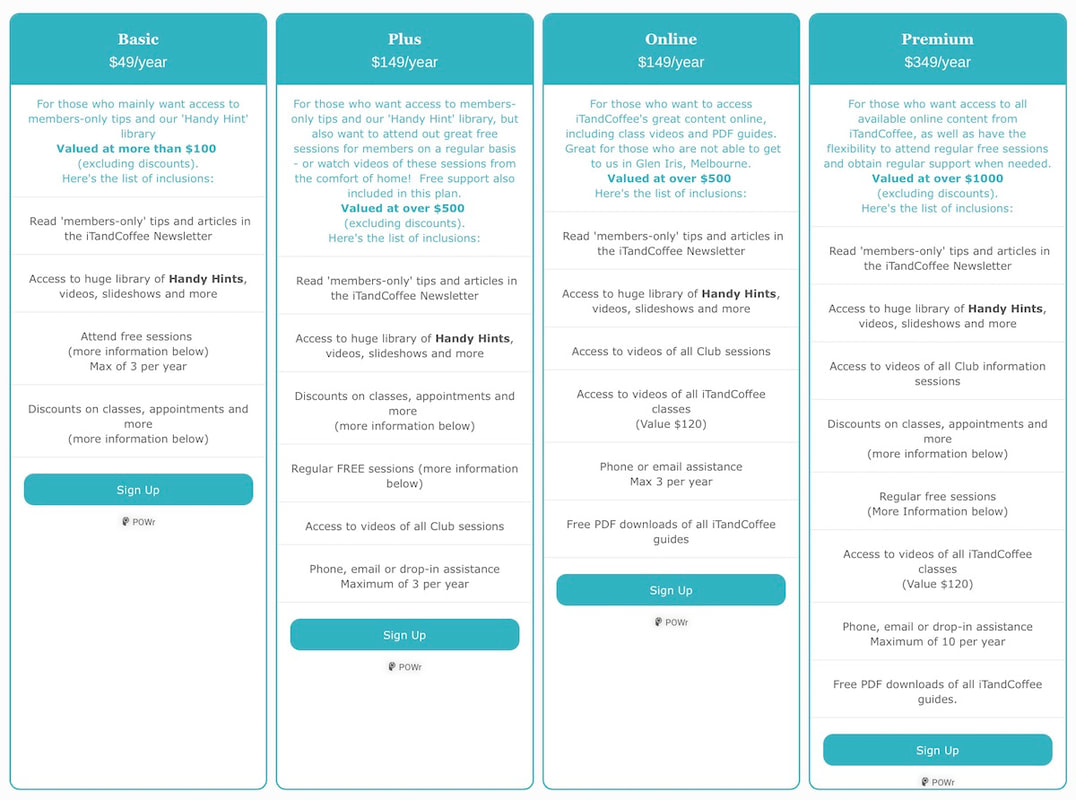
​Below is an image that shows the plans we have introduced.  (Click/tap on the image to view the web page that has further details about the changes.)
Picture

We have an exciting promotion for the next few months!

Picture

Can I upgrade and qualify for the iPad prize?

Of course you can!

Any existing iTandCoffee member who would like to enter the draw to win an iPad can upgrade their existing plan at any time to one of the qualifying new plans. 

We will then refund any amount you have already paid for your annual membership, based on how many days were left of that subscription, and cancel the old PayPal or Stripe subscription (if applicable).

Don't hesitate to contact us on 1300 885 420 or at [email protected] if you require any assistance with upgrading.

Can I stay on my current subscription level ($30/year)

Original iTandCoffee Club members (currently paying $30 per year), will continue to receive all the benefits of the 'Basic' $49 plan shown in the above image, until the anniversary of your membership.  

Original members will be able to attend up the 3 club sessions (e.g. Free Fridays) during 2017, regardless of the anniversary date of their membership.

If the $30/year plan is renewed (via Stripe or PayPal), these original members will retain access to 'members-only' newsletter articles, the Handy Hints library, and a selection of videos and slideshows.  

However, 'original' subscriptions will no longer entitle these members to other services and benefits after the anniversary date.

As mentioned above, those who currently subscribe to the $30/year plan can migrate to a different Club plan at any time.

We will contact members around the time of subscription renewal to discuss which plan you would like to utilise going forward and to assist with whatever changes you wish to make.

There's just one thing original members need to do at this stage

We have had to set existing members up afresh in the new membership system, which means we will need these members to do a  PASSWORD RESET the first time they sign in to the updatediTandCoffee Club membership system. 

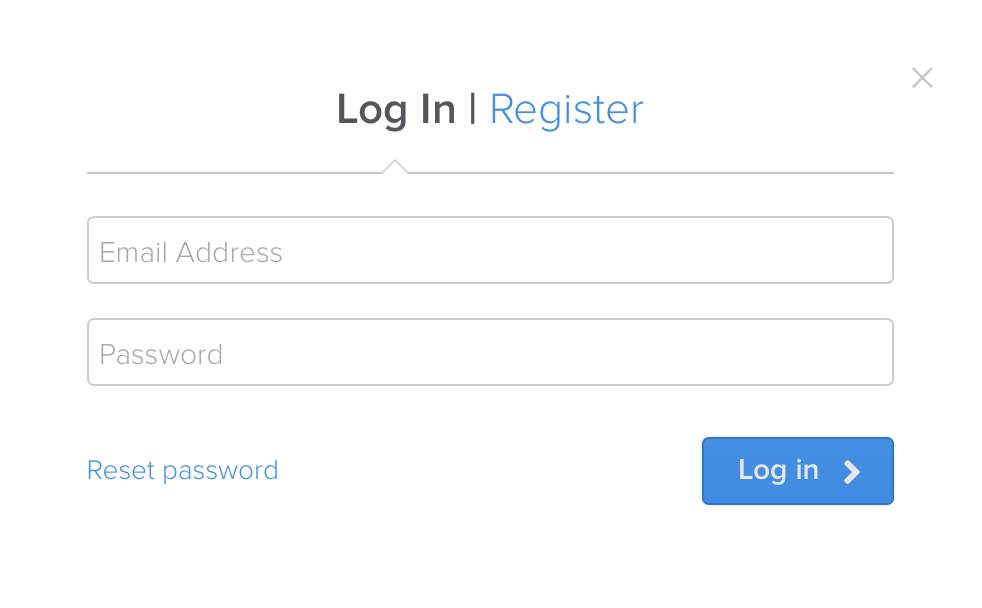
You will notice that the login screen for the new membership system is quite different to that you previously saw.  ​

​Here is what the new 'login' screen looks like.  You will see in appear before you can access any 'members-only' content, but only if you are not already logged in.
Picture
Members can just choose Reset password, then enter your email address to receive an email with a link to set up your password.  If you like, you can use the same one that was used previously for The iTandCoffee Club.  

If you do need any assistance with this, call us on 1300 885 420 or email us at [email protected].

A big PLUS of the new membership system

A great thing about the new membership system is that, after you log in, it will take you straight to the page you were looking for.  This is something that the other membership system did not do well.  I know it was a cause of much frustration for many of you - we were not very satisfied with it either and had tried for a long time (unsuccessfully) to get the provider of the old membership service to address this big shortcoming.

We will be continuing to build on the content that is currently available to Club members, so make sure you keep an eye on the newsletter for 'what's new'.

THANKS TO OUR MEMBERS

Thanks for being part of The iTandCoffee Club

Please don't hesitate to contact us at [email protected] if you have any problems accessing Club pages, or have any general questions about The iTandCoffee Club.
0 Comments
15/7/2017 0 Comments

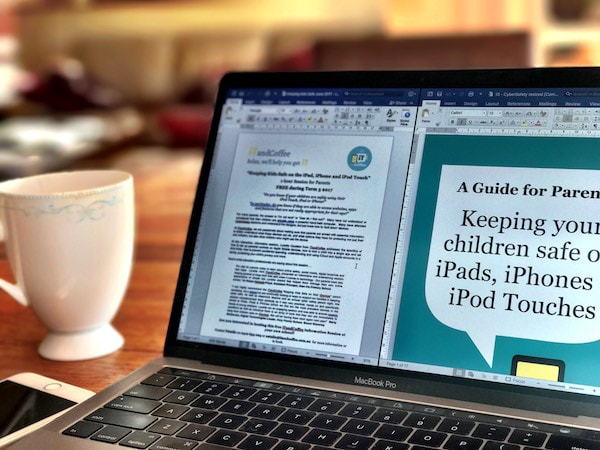
How can I make two documents appear side-by-side on my Mac?

Picture
iTandCoffee client Frances O is currently co-writing a book, and was wanting to display two Word documents side-by-side, so that she could review editor comments against her own version of the document.

She contacted iTandCoffee to find out how to do this.  

For Mac users like Frances who want to learn more about how to manage app windows on a Mac - how to re-position them, how to resize, close, minimise, split the screen and more - we have included a new Mac Handy Hint in the Clubhouse area, for iTandCoffee Club members.

Find out how to show app windows side-by-side on Mac
0 Comments

13/7/2017 0 Comments

Can I download a Netflix TV series to watch when I don't have internet?

Picture
Another question raised this week in relation to travelling with technology was about whether it is possible to download Netflix content to watch 'offline' (i.e. when you don't have internet).

This question arose during a discussion about 'geo-blocking' of Netflix, ABCiView, SBS On Demand and other Australian content - which prevents you accessing these Australian services when you are not in Australia.

My client had heard of a TV series that was available on Netflix (which she subscribes to), and wanted to be able to watch it during her trip.

The good news is that, since late last year, you CAN download content from Netflix to watch 'offline'.

Here is how to do it.

Downloading Netflix content to your iPhone or iPad
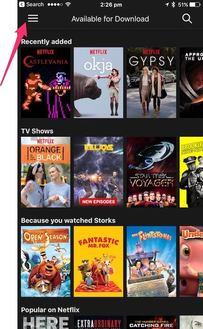
  • Make sure you have the Netflix app on your iPad or iPhone.
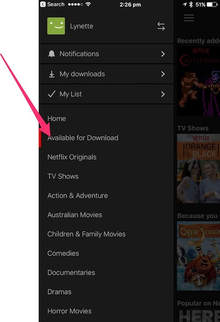
  • Tap on the Menu symbol at top left
Picture
  • Select 'Available Downloads'
Picture
  • Use the search bar option (magnifying glass) at the top to search for the program you require.
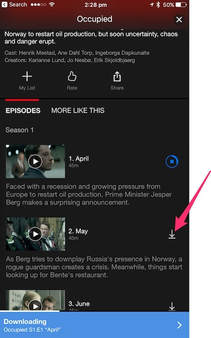
  • When you find it, scroll down to see the episodes (if it is a TV program) and choose the 'download' symbol of the episodes you wish to download to your device.
Picture
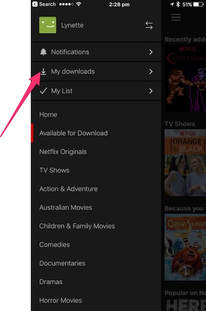
  • Once you have downloaded content, you can access it from the My Downloads option in the Netflix app's menu.
Picture

How much data will I use by downloading this content, and how much space will it take?

The amount of data that you will use when downloading content - and then how much room that content uses on your device - will depend on the program.

You will use somewhere around 200MB for one hour of SD (standard definition) quality content, and about double that for HD (high definition) quality content.

For our mobile devices, SD quality is usually good enough and will ensure fastest download and require less storage space.

​Find out more in the below Netflix Help article.
  • How can I control how much data Netflix uses? | Netflix Help  ​

Will my downloads 'expire'?  How long do I have to watch them

You can't keep the downloaded Netflix content forever - and the expiry of the content you download will vary.  Generally, you will have 48 hours to watch once you have hit 'Play'.  

You will be able to check in My Downloads to see if a downloaded program is on a countdown to expiry!

Can I 'renew' an expired download?

It is possible to 'renew' an expired download, but only by deleting it and downloading it again. You must have an internet connection to do this.

Here's how to remove it from your My Downloads
  1. Tap My Downloads (refer above)
  2. Tap Edit (top right).
  3. Tap the red X - this will remove it.

Then you will need to follow the steps above to download again. 

A warning here: you may not be able to re-download all programs due to studio limits.  In such a case, you would just need to wait until you have internet access (and are in the correct country) to watch it.

Want to read more about this?

Here is a good article from The Age, published in December 2016 - shortly after the 'offline' capability was introduce   
  • Netflix downloads: everything you need to know | The Age  

Get more great tips like this!

Picture
Provide your email address here, and we will immediately send a selection of some of our most popular tips.
We'll also put you on the list to receive our FREE fortnightly newsletter, which is full of tips, news and information about using your technology in your everyday life!
0 Comments

12/7/2017 0 Comments

Temporarily allowing mobile data and allowing/blocking phone calls when travelling.

Picture

​As mentioned in the earlier post Lend your mobile internet to your Wi-Fi only device - using your Personal Hotspot, client Chris K is off overseas this week, and will be purchasing and setting up a TravelSim before she goes (with assistance from iTandCoffee). 

This TravelSIM will give her access to a data bundle that offers 1GB for 30 days - so she CAN choose to use mobile data while she travels.  (If she was just leaving her Telstra SIM in the iPhone, she would definitely NOT be using mobile data as it would cost $3 per MB!)  

The TravelSIM will also allow incoming and outgoing calls for only 25c per minute (much cheaper than Telstra's $2/minute).

The trick is understanding what to do to minimise the cost of using this TravelSIM when traveling, and to avoid unintended use of the Mobile Data allowance.

I promised Chris I would write up some (hopefully) straight-forward rules about the settings that she needs to turn on and off at different times, depending on whether she wants to be making/receiving calls and texts, and whether she wants be using her 1GB allowance of mobile data (vs just using Wi-Fi).

So, here goes Chris!  I hope it makes sense.

Enabling/disabling internet, phone calls and texts while travelling OS

In general, leave Mobile Data and Data Roaming OFF to avoid unintended use of the 1GB mobile data allowance
  • Data Roaming is turned on/off at Settings -> Mobile -> Mobile Data Options
  • Mobile Data is turned on/off at Settings -> Mobile

If you really need internet but there is NO access to Wi-Fi:
  • Turn on Mobile Data at  Settings -> Mobile
  • Then turn on Data Roaming temporarily at Settings -> Mobile -> Mobile Data Options
  • Use the internet to retrieve emails, Google, get directions, etc.  
  • Think twice before doing any video/audio calling using Skype, WhatsApp, Facebook Messenger, or FaceTime as this will use a lot of your data allowance.
  • When done, turn Data Roaming OFF 
  • And then turn Mobile Data OFF (in that order)

Block phone calls and texts (incoming and outgoing):
  • Turn Airplane Mode ON (this disables phone calls and texts, Wi-Fi, and mobile data)
  • When Airplane Mode is ON, Wi-Fi can be turned back on when required.  (This means that phone calls and texts CANNOT be sent/received, but internet is still available using Wi-Fi.)

Allow phone calls and texts (incoming and outgoing):
  • Turn OFF Airplane Mode

Handy Hints  (for iTandCoffee Club Members only)
  • Phone and text access while travelling overseas
  • Have you discovered this great feature of the TripAdvisor App?
Blog Articles (no membership required)
  • Exciting news about Google Translate - just in time for school holiday travel to foreign lands!
  • How to keep in touch by phone while travelling overseas     
  • iPhone tip: How to dial an overseas number that has a '+' at the start     
  • Apple SIM provides data for travellers in 90 countries     
  • So many ways to keep in touch from the other side of the world using your iPad and iPhone     
  • Some warnings about using Wi-Fi when travelling - even Hotel Wi-Fi     
  • A really handy app for travellers
  • Checking your voicemail when you don't have access to your regular phone or SIM     
  • Making sure that your contacts' names appear in the Messages and Phone apps when you travel OS     
  • Why don't certain iPhone messages arrive until I am connected to WiFi?     
  • I turned on my data roaming and used 11MB in a flash      
  • For travellers: how to get SatNav on your iPhone or iPad when you don't have internet     
  • Client Question:  Why can't I send my Bigpond email when I am in Hong Kong?   
  • How to get access to Australian content when you travel - while keeping your online world secure   
  • Great ways of adding more storage to your iPad and iPhone - especially when you travel       
  • Here's a handy app for when you travel - especially by train     
  • A great accessory for travelling with your iPhone and iPad - battery charging, backup and extra storage for your i-Device
  • Some great news for travellers who want internet on the go
  • Some information for travellers about iMessage and safe internet usage

Related Handy Hints and Articles

0 Comments

11/7/2017 0 Comments

No need to choose between video-ing and taking a photo - you can do both!

Picture
Don't you hate that you normally have to choose between photographing and videoing something - eg the family singing happy birthday or a baby taking first steps?  

​Well, did you know that you can take photos while you are videoing on your iPhone or iPad?

Here is a handy hint recorded a while back, showing you how easy this is to do.  
How to take a photo at the same time as videoing

Related Handy Hints and Tips

Handy Hints (for iTandCoffee Club members)
  • Creating an Album in Photos on your iPad and iPhone
  • Sending an individual photo from the Photos app
  • Send several photos from the Photos app
  • Saving photos and documents received in Mail on the iPad and iPhone
  • Separately control focus and light in the Camera app
  • Scan your credit card and avoid typing in the details
  • Taking better photos with your iPhone and iPad
  • Camera and Photos: Quickly taking a photo on your iPhone or iPad
  • Accessing the Camera App from the Lock screen
  • How to see your iPad and iPhone photos presented on a map
  • Getting edited iPhone (or iPad) photos across to your computer using iCloud Shared Streams
  • iOS 10 - Accessing the Camera App from the Lock screen
  • iOS 10 - Draw and write on photos + a new 'Edit' symbol
  • Separately control focus and light in the Camera app
  • Hiding photos from your timeline in the Photos app
  • How to access 'edit' options for photos on your iPad and iPhone
  • Search for your photos by location, date, object and more
  • Tag your Favourite photos and view all of them in one place!
  • Getting back a photo or video that was accidentally deleted
  • Taking better photos with your iPhone and iPad
  • Sending an individual photo from the Photos app
  • Importing iPad and iPhone photos to a Windows computer
  • How can I delete photos from my iPad and iPhone in bulk using a Windows computer?
  • Deleting iPhone and iPad photos in bulk using a Mac
  • Take a photo while you are videoing
  • Take a photo of whatever is on your screen - screenshots
  • Saving a photo you see in Facebook on your iPad or iPhone
Blog articles (no membership required)
  • My first iMovie video on my new iPhone 6 Plus!
  • Do you hate having to scan and send documents?
  • Password Keeper apps for iDevices
  • A great app for tracking data usage on your iPad and iPhone
  • Have you discovered 'app extensions'?  Here are some really great extensions for the Photos app.
  • I seem to get two copies of photos on my iPhone when HDR is on
  • How can I print several photos on a single page from my iPad or iPhone
  • iOS 9 offers a new way of deleting photos in bulk from your iPad and iPhone
  • Great slideshows for learning all about taking and managing photos on your iPad and iPhone
  • Are your 'bursts' of photos causing your iPad, iPhone or Mac to 'burst its storage banks'?
  • One of the most important things to do to take a good photo 
  • Trying out some interesting new Photo Book options
  • Can I change the date of a photo so it appears in the correct Year in Apple's Photos app?
  • How to add music to a Photos slideshow when you have Apple Music
  • How Apple's Photos app 'saved the day'!
0 Comments

11/7/2017 2 Comments

Lend your mobile internet to your Wi-Fi only device - using your Personal Hotspot

Picture
Chris K has visited iTandCoffee over the past couple of weeks to discuss travelling with her technology.  We have discussed her options for phone, SMS and internet while travelling overseas this month.

The option that best meets Chris's needs is to purchase and set up a TravelSim (which she will get from a Post Shop) for her iPhone.  

Travelsim currently offers 1GB of mobile data with any activation (valid for activations before 16/7/17).  (This data allowance expires 30 days after activation.)

While 1GB is not a huge amount of data for 30 days, it certainly will give her enough to allow her to regularly check her email, look up maps, and do a bit of Googling when she does not have access to Wi-Fi.

Chris will also take her iPad mini. She wants to be able to manage her emails and look up websites using the larger screen offered by that device (instead of always using her iPhone 6).

Rather than buy another SIM for her iPad, I have suggested that she utilise the data allowance of her iPhone's TravelSim when accessing the internet on her iPad.

She can do this by enabling her Personal Hotspot on her iPhone, and connecting to this Personal Hotspot from Settings->Wi-Fi on her iPad.

Find out more about using a Personal Hotspot in the below Handy Hint for iTandCoffee Club members.
  • ​Use your Personal Hotspot to provide mobile data to your Wi-Fi only device

Related Handy Hints and Articles

Handy Hints (for iTandCoffee Club Members only)
  • ​Managing and monitoring your mobile data usage
  • Sharing content from one device to another using Airdrop
  • Stopping Facebook from autoplaying videos - and wasting your mobile data​
Blog Articles (no membership required)
  • I turned on my data roaming and used 11MB in a flash  
  • A great new data usage 'stopwatch' for my iPad and iPhone
  • Have you turned off this data-gobbling feature of iOS 9?
  • My device shows the internet is working, but it is not!
  • How to tell Google to only search for 'recent' content, or only Australian content
  • Understanding NBN and VPN - two TLA's (three-letter acronyms) we are hearing a lot lately!
  • If you have been having trouble lately with your internet or with sending mail ...
  • If you use public WiFi, you should read this
  • Here's how to check if and when NBN is available to you
2 Comments

11/7/2017 0 Comments

Why does my iPhone show I am signing in from somewhere else?

Picture
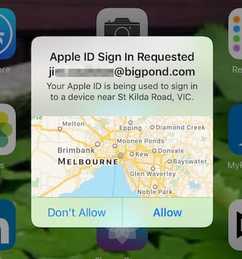
This question has been asked a few time this week, so I thought it worth re-publishing an article that was written in December last year.  

In fact, it's an article that I wrote for my own Mum, who was really confused over messages appearing on her iPhone saying someone from 'St Kilda Rd' was trying to access one of her devices.

Here is a link to the article, for anyone suffering the same confusion.
  • I keep getting  a message showing a sign-in is requested from a strange location. (In Melbourne, it shows St Kilda.)         


0 Comments

11/7/2017 0 Comments

What to do when your Apple password is rejected over and over - even though you know it's correct!

Picture
This has been a common problem encountered by so many iTandCoffee clients.  In fact, we have already had seen two clients this week who have had the problem (and it's only Tuesday!).

Apple just won't accept my password!  

The issue arises when 'two-factor authentication' has been enabled on an iOS 10 (or MacOS), but where other devices that use the same Apple ID are running an older version of iOS or OS-X.  

The older versions of iOS and OS-X don't 'understand' the newer security steps that two-factor authentication bring.

As soon as two-factor authentication is enabled on one of their devices, our clients have found that their password keeps getting rejected on other devices - even though they know that the password is correct. 

They get a message popping up on their 'up-to-date' iOS 10 device (or on their 'up-to-date' Mac) saying that someone is trying to access their account, with an 'Allow' (or 'Don't Allow') option. 

When they choose 'Allow' to get the 6-digit two-factor authentication code, they find themselves stuck - because the device that rejected their password does not offer a place to enter this 6-digit code.  

Instead, it just tells them that their password is incorrect.

Fear not!  There is a solution

Fortunately, there is a relatively easy fix for this problem. 

We covered this issue in our February 2017 Handy Hint newsletter.  (Subscribe to our great Newsletter here so that you get to see FREE tips like this »)

This tip has since been moved to our Handy Hint Library, which is for iTandCoffee Club members.  Here it is - if you are a Club member, just select the link to view the solution.
How to resolve Apple sign-in issues where valid password is rejected

Not yet a member of The iTandCoffee Club?

Contact iTandCoffee on 1300 885 420 if you need help to solve this problem.

​If you are 'not so local' and are not yet a member, why not join The iTandCoffee Club to gain access to our huge library of great tips like this.​

Related Handy Hints and Articles

Handy Hints (for iTandCoffee Club members only)
  • What to do when your iCloud is full - Managing and upgrading your iCloud storage
  • Making sure your contacts' email addresses are saved and shared between your devices
  • How can I find my muted iPhone in my house!?  I know it's here somewhere!
  • How can I reset my forgotten Apple password?   Where can I go to change this password?
  • Getting edited iPhone (or iPad) photos across to your computer using iCloud Shared Streams
  • Removing unwanted backups from your iCloud​

Blog Articles 
(no membership required)
  • Why does Apple's two factor authentication show I am a different location?  (In Melbourne, it shows I am in St Kilda)
  • Are you a bit (or a lot) bamboozled by iCloud? 
  • Have you got problems with iCloud - 'storage full' message, mis-directed messages, muddled Contacts and Calendar, and more?
  • Will my iCloud Backup blow my data limit?
  • Be careful what you say in an iMessage.  Someone unexpected might be getting the message!
  • Was iCloud to blame for this family's sad state of upheaval? 
  • A warning if you are considering changing the email address associated with your Apple iCloud account ... 
  • Is iCloud Safe?
  • When your iCloud gets crowded! The problem with sharing your iCloud ...
  • Who's got my iPhone?!!  Why are there strangers in my Photo Stream?
  • As the song goes, "Hey, you, get off of my iCloud!"
  • Apple has increased iCloud 20Gb storage tier
  • Be careful what you say in an iMessage.  Someone unexpected might be getting the message!
  • Is your iCloud set up correctly? (LinkedIn article)
  • Please check your iCloud setup - not just for your own sake, but for the sake of your friends!
  • How to find out if you have an iCloud backup - especially if your device has 'died'!
  • An important iPhone and iPad setting that you should ensure is turned on ...
0 Comments

11/7/2017 0 Comments

Is there a quick way to get all the local school term dates and public holidays into my Calendar?

Picture
How often do you find yourself needing to look up school holiday dates and public holidays for where you live?  

I know that the 'Australian Public Holidays' is a standard Calendar that is available in the Calendar app on my Mac and iDevices, but I would rather just see the public holidays and school term dates for my own location.

Just today, I decided to investigate if I could get the Victorian school terms (for at least this year and next) into my Calendar, so that I could easily look up future term start and end dates.

It turned out that was very easy to do.  I just went to the www.vic.gov.au website, and visited their iCal Downloads page.

That page has calendar downloads for school term dates, and also for Victorian Public Holidays, for up to 2025.  

For anyone else who is interested, just click on the below links to download an 'ical' file that you can then open, to import the dates into your Calendar.  You simply choose which 'calendar' to import to. (I created a new 'School Terms and Public Holidays' calendar to hold these dates.  If you are not sure how to create such a calendar, check out this Handy Hint for iTandCoffee Club members.)

Victoria
  • VIC Public Holiday dates
  • School Term dates

If you are not in Victoria, here are a couple of links for other states.
  • NSW term dates and holidays
  • QLD School Holidays

If you live somewhere else, why not Google something like what I Googled, which was "calendar of school holidays download location-name".​

Easy viewing of term dates in iPhone/iPad Calendar

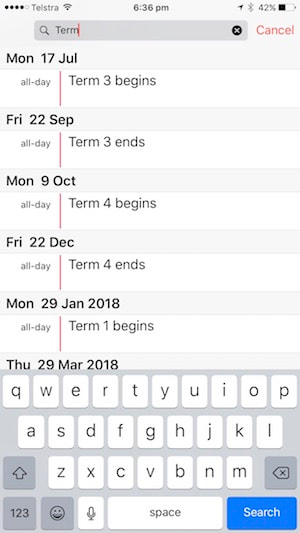
Having added the 'term' dates to my calendar, I can then quickly look up a list of term dates for future.

I just tap the 'magnifying glass' at the top of the calendar screen to perform a search, and enter term.

My calendar app then shows me the term dates for the next 12 months.  (On my Mac, the list of dates goes right through to 2025.) 
Picture

Related Handy Hints and Articles

Handy Hints (for iTandCoffee Club members)
  • Quickly save the date received in an email - and set up an event in your calendar
  • Quickly create a calendar event in your iPad's or iPhone's calendar​
  • The week view in the Calendar on your iPhone
  • Can I share a calendar with my husband, but only show those events that I want him to see?
  • Creating multiple calendars and choosing which calendar applies to each event
  • Make sure you never forget birthdays - using the Contacts app!
  • Dealing with missing events in the Calendar
  • Controlling Facebook notifications about birthdays and events
  • Including or excluding Facebook information from Contacts and Calendar apps
  • How to ensure you know where to be and when - setting standard alerts for your Calendar events
  • Using Reminders to help manage a busy life
  • ​Tell Siri to remind you about an email, text, web content - anything!
Blog Articles (no membership required)
  • Did you receive a heap of 'spam' Calendar invitations recently?
  • My iPhone tells me when it is time to leave for appointments - based on current traffic conditions
  • What happened to all the events in my Calendar?
  • Why do my iPhone's Calendar entries disappear after a month?   
  • My Apple devices remember birthdays!  But where do they come from?
0 Comments

2/7/2017 0 Comments

How to check if your email address is on any list from 'hacked' websites

Picture
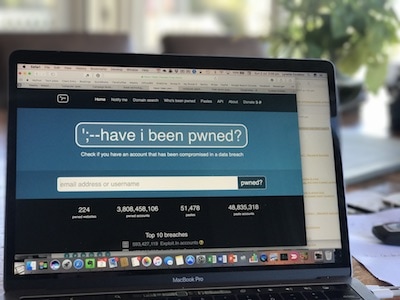
I was reading the Innovic monthly newsletter this week, and it included a handy link that I thought readers of our own iTandCoffee newsletter might appreciate.

It is a link to a site that allows you to check if your email address (or username) has been found on a list of details stolen from various well-known websites - for example, Dropbox, LinkedIn, Adobe, Yahoo.

This various websites were compromised at different times over the past few years, and email addresses, passwords and other details were stolen.

I found my own email address was listed twice on the 'hacked' list - for LinkedIn and for Dropbox.  

I had already changed my password for these sites, but it was unsettling to see that I was 'on the list'.

Its worth checking your own email address, and then ensuring that you have changed your password details for any site for which you DO appear on the list.

Here is a link to the website:
  • Have I been pwned? Check if your email has been compromised in a data breach
                                                               
0 Comments
<<Previous
Forward>>

    Receive great articles like this 
    fortnightly to your Inbox

    Picture

    Follow us on Facebook

    iTandCoffee

    Picture

    Join the iTandCoffee Club

    ​for free content, tutorials, videos, classes, offers, discounts and more

    Join our growing community of local and online members who love learning about their technology - through FREE club sessions, remote/phone support, online tips, tricks and tutorials, special members-only offers and discounts, and more. Membership starts at only $49/year.
    Find out more about The iTandCoffee Club

    What's on at iTandCoffee ?

    Below is our list of videos, classes and other events that are coming up soon.
    ​Videos shown are offered for eligible members of the iTandCoffee Club.
    If you have questions, why not join fun and informative 'user group' meetings, held once a month.
    All iTandCoffee classes are run as online classes (using Zoom), which means you can attend from anywhere.

    Archives

    May 2026
    April 2026
    March 2026
    February 2026
    January 2026
    December 2025
    November 2025
    October 2025
    September 2025
    August 2025
    July 2025
    May 2025
    April 2025
    March 2025
    February 2025
    December 2024
    November 2024
    October 2024
    September 2024
    August 2024
    July 2024
    June 2024
    May 2024
    April 2024
    March 2024
    February 2024
    January 2024
    December 2023
    November 2023
    October 2023
    September 2023
    August 2023
    July 2023
    June 2023
    May 2023
    April 2023
    March 2023
    February 2023
    January 2023
    December 2022
    November 2022
    October 2022
    September 2022
    August 2022
    July 2022
    June 2022
    May 2022
    April 2022
    March 2022
    February 2022
    January 2022
    December 2021
    November 2021
    October 2021
    September 2021
    August 2021
    July 2021
    June 2021
    May 2021
    April 2021
    March 2021
    February 2021
    January 2021
    December 2020
    November 2020
    October 2020
    September 2020
    August 2020
    July 2020
    June 2020
    May 2020
    April 2020
    March 2020
    February 2020
    January 2020
    December 2019
    November 2019
    October 2019
    September 2019
    August 2019
    July 2019
    June 2019
    May 2019
    April 2019
    March 2019
    February 2019
    January 2019
    December 2018
    November 2018
    October 2018
    September 2018
    August 2018
    July 2018
    June 2018
    May 2018
    April 2018
    March 2018
    February 2018
    January 2018
    December 2017
    November 2017
    October 2017
    September 2017
    August 2017
    July 2017
    June 2017
    May 2017
    April 2017
    March 2017
    February 2017
    January 2017
    December 2016
    November 2016
    October 2016
    September 2016
    August 2016
    July 2016
    June 2016
    May 2016
    April 2016
    March 2016
    February 2016
    January 2016
    December 2015
    November 2015
    October 2015
    September 2015
    August 2015
    July 2015
    June 2015
    May 2015
    April 2015
    March 2015
    February 2015
    January 2015
    December 2014
    November 2014
    October 2014
    September 2014
    August 2014
    July 2014
    June 2014
    May 2014
    April 2014
    March 2014
    February 2014
    January 2014
    December 2013
    November 2013
    October 2013
    September 2013
    August 2013
    July 2013
    June 2013
    May 2013
    April 2013
    March 2013
    February 2013
    January 2013
    November 2012
    October 2012
    September 2012
    August 2012
    May 2012

    Categories

    All 1800-number Accessibility Accessories Activity Monitor Adobe Adware AI Airdrop Airplay Airpods Alarms Alerts Android Apple Account Apple Id Apple-id Appleid.apple.com Apple Music Apple News Apple Pay Apple Pencil Apple Tv Apple Watch Apps App Specific Passwords App Store App Windows Apss Audio Autolock Automatic-downloadsupdates Automator Backup Backups Battery Be-connected Be-connected Bigpond Big Sur Bitcoin Bitlocker Blockchain Bluetooth Booklet Books Boot Camp Budgetting Business Buying Guide Calendar Camera Canva Captcha Catalina Cellular Data Centrelink Channel 9 Charging ChatGPT Christmas Chrome Classes Client Stories Clipboard Cloud Cloud-storage Cloud-storage Club Club News Colours Com Compass Contacts Continuity Control-center Control Centre Convert Cookies Copilot COVID COVID 19 COVID-19 Cybersafety Datad777f385d3 Data Usage Delete Desktop Dictation Dock Do Not Disturb Downloads Dropbox DVD Education El-capitan Email Emergency Emojii Encryption Entertainment ESIM Ethernet Evernote Excel Facebook Family Family History Files Finance Finder Find My Find My Car Find-my-iDevice Fingerprint Sensor Fonts Force Reboot Forgetting Curve Fraud Free Friday Gift Ideas Gmail Google Google Drive Google Flights Google Photos Google Sheets Government Services Guides Handbrake Handoff Handy Hints Hard-drive-crash HDD Health High Sierra Home Button Homepod Home Screen Hotmail Housekeeping Humour ICloud ICloud Backup ICloud Drive ICloud Family ICloud Photo Library Identity Identity Theft Images Image-to-text IMAP IMessage Imovie Instagram Internet Internet Issues Internet-options Internet-options Ios Ios-11 Ios-11 Ios-12 IOS 13 IOS 14 IOS 15 IOS 16 IOS 17 IOS 18 IOS 26 Ios Photos IPad Ipad-tips Iphone Iphone-12 IPhone 13 IPhone 16 Iphone-8 Iphone8 Iphone Basics Iphone-calendar IPhone Mirroring Iphone Settings Iphone-x Iphonex Ipod Itandcoffee Itandcoffee Club Itandcoffee News Itandcoffee Services Itandcoffee-swap-shop Itandwine Itunes Junk Keyboard Keychain Kids And Technology Kidsandtechnology Lifestyle Lock Screen Mac Mac-basics Mackeeper Mac Mail Mac-mail Mac-monday Macos MacOS 26 MacOS Sequoia Mac Photos Mac-photos Mac Storage Mac Tutorials Mac-videos Magnifier Magsafe Mail Malware Maps Measure Media Medical-id Messages Messenger Microphone Microsoft Microsoft 365 Mobile Banking Mobile Data Mobile-data Mobile Porting Mojave Monterey Motion Mouse Movies Multitasking Music MyGov My-health-record Navigation NBN Netflix Notes Notifications Number Porting Office 365 Onedrive Onenote Online Safety Online-safety Optusnet Os-x Outlook Pages Parental Controls Passwords Paypal PDF Personal Hotspot Phishing Phone Photo Book Photo-books Photos Photos On Mac PLAYLIST Podcasts Popups Powerpoint Preview Printing Privacy Productivity Product Launch Publicity Publicityads57a389ac69 Publisher Purchasing-an-idevice Qa QR Code Quicktime Raise-to-wake Ransomware Reachability Reboot Recommendations Recovery Relay Reminders Remotewipe Repairs Restore Restrictions Rings Rotation-lock Router Safari Safari-favourites Samsung Santa Scam Scam Email Scams Scan Scannable Scanning School-ipad Scoopit Screen Screen-brightness Screensaver Screenshots Screen Time Scrolling Secondhand-devices Security Sell Seniors Seo Services Sessions Settings Share Shared-calendar Shop Shopping Shortcuts Sierra Signature Silent-auction Sim Siri Skype Slideover Slides Slideshow Slideshows Slow-device Slow-mac Smart-tv Sms Snapfish Social Media Socialmedia Software Update Softwareupdate Software Updates Sonoma Sounds Spam Spinning-beachball Split Screen Split View Spotlightsearch Startup Storage Storage Space Streaming Subscriptions Sunrise Switch Symbols Sync System Preferences Task Manager Tasks Task-switcher Taskswitcher Teams Technology Technologyarticles Technologydependency Technology-lifestyle Technology-solutions Technologytips Techsupport Telco Telcos Telstra Telstracomplaint Text Text Replacements Theft The-katering-show Thermomix Thesenior Timemachine Time-to-leave Tio Toys Trackpad Training Videos Transcribe Translate Travel Travel Sim Tripadvisor Troubleshooting Tutorial Tutorials TV Two Factor Authentication Twofactor-authentication Two-step-verification Typing Typing Shortcuts Undo Universal Control Unlock Update Updates Upgrade Uppercase Usage User Group Utilities Ventura Video Video-blog Videos Virus Voice-and-data Voicemail Voice-memos Volume Vpn Wallet Wallpaper Warnings Weather Web Browser Website Weebly Whatsapp Widgets Wi-fi Wi-Fi Wifi Wifi084d04ddac Wifi-calling Windows Windows 10 Windows10 Windows 11 Word Wordpress Worldclock Yosemite Youtube Zoom

    RSS Feed

​​Call  +61 444 532 161  or  1300 885 420

​to book an appointment or class, or to enquire about our services and products


Seniors Card Welcome
SENIORS CARD WELCOME HERE:
Seniors Card holders qualify for a 10%* discount on eligible classes booked and paid for online. 
To activate the discount at the time of booking, select Redeem Coupon or Gift Certificate and enter 10OFFSEN before selecting Pay Now
Seniors can also save $5** on the first full hour of appointments booked online. Enter Coupon Code of 
BASEN5 when booking to receive this discount.
* Some heavily discounted classes are excluded from the 10% class discount offer.
** Where more than one type of discount is available, only one type of discount can be used.

Services
Classes
Event Calendar
Private Appointments
Gift Vouchers
Remote support
​Business Services
​Help for families

Online Content
​Newsletter
User Guides
Video tutorials/classes
Tips and Hints
​Blog
iTandCoffee Club
About the Club
Free Club Sessions
Sign In/View Account
Members Area
Prices/Policies
Prices
Privacy
Cancellations, Refunds, Returns
About iTandCoffee
Home
About

​Contact us
Testimonials
In the press

Picture
​© 2012-2026 iTandCoffee Pty Ltd. All rights reserved  ACN: 606 340 434