
However, there are also some major disadvantages this feature:
Personally, I don't want my Desktop to be syncing to my iCloud as I use it as a temporary storage area for screenshots and other files that I will not be keeping longer term. I also want to be able to be selective about what Documents content I sync to any Cloud storage solution. iCloud Drive is nowhere near as mature a cloud storage product as Dropbox, OneDrive or Google Drive. I mainly use OneDrive for my 'cloud' storage, but also have Dropbox. How do you get your Desktop and Documents out of iCloud Drive? The trick is how to undo this setup once it has occurred. It is a little confusing and requires several steps. You must go to your System Preferences -> iCloud -> iCloud Drive, and 'untick' Desktop & Documents Folders. 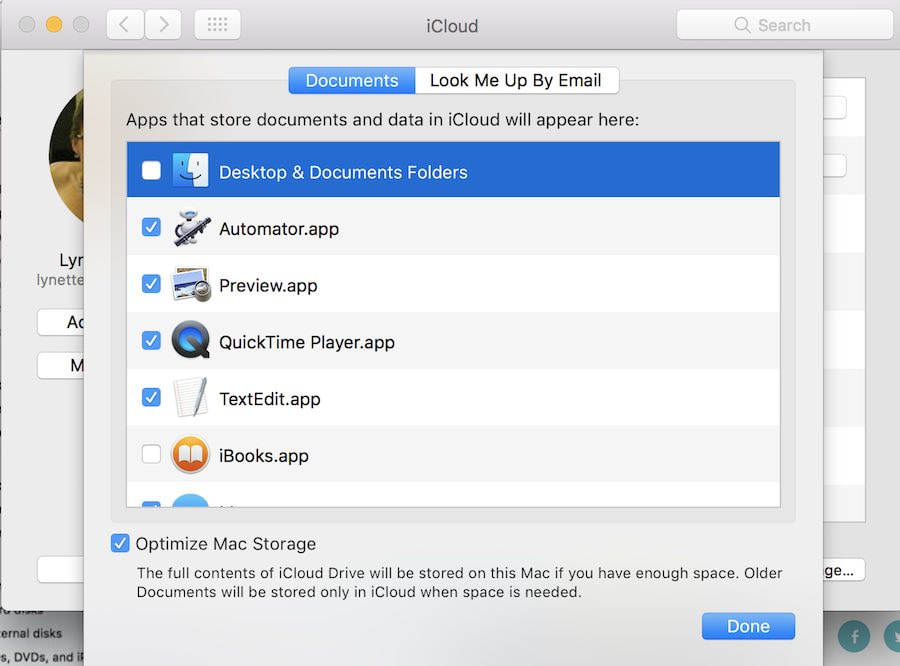 It doesn't end there, however. There are a couple more steps to follow to get your Desktop and Documents out of iCloud and back to where they used to be. We have recorded a video tutorial of how to get your Desktop and Documents folders out of iCloud. This tutorial is now available to all members of The iTandCoffee Club. You must have a club login to access this tutorial. (Find out how to Join the Club here ») If you are not brave enough to undertake this change yourself, iTandCoffee can help. Appointment bookings can be made here, or just call 1300 885 420. Would you like to understand your Mac better, and get more from it?Learn more about Files, Folders and Finder on the MacWe have recently re-recorded the Files Folders and Finder class from the Getting to know your Mac class series, creating a great set of easy to follow video tutorials about how to organise and manage all your files and folders on your Mac. The list of topics is shown below. These videos are now available to anyone who has either the Online or Premium iTandCoffee Club membership. (Find out more about The iTandCoffee Club here ») Those of you without membership can purchase this set of videos for only $25 (a great price, considering classes cost $55 - and that you can watch these videos as many times as you like!). Find out more about how to gain access to these videos here » Try before you buy! Would you like to first get a taste of the style of these tutorials? The first first two in the list below are unrestricted - no membership or purchase is required to view them. Check them out and see what you think. 2-1 Introduction and concepts (unrestricted) 2-2 Opening and Using Finder (unrestricted) 2-3 The Finder Sidebar 2-4 Main Finder Folders 2-5 Viewing your Files and Folders - List View 2-6 Viewing your Files and Folders - other Views 2-7 Arranging and Sharing Finder Content 2-8 Customising Finder's Toolbar 2-9 The Path Bar and Status Bar 2-10 Previewing Files (Quick Look) 2-11 Opening a file 2-12 Creating Folders 2-13 Reorganising your files and folders 2-14 Selecting Multiple Files 2-15 Create Folder from Selection 2-16 Reorganising using Drag and drop 2-17 Copy, Paste, Move - with Command Key 2-18 Copy, Paste, Move - with Right Click 2-19 Saving files from other applications 2-20 Get Information about a file or folder 2-21 Setting up Favourite Files and Folders 2-22 Searching for files and folders 2-23 Smart Folders, Saved Searches 2-24 Desktop and Documents in iCloud Drive 2-25 Minimising multiple app windows 2-26 Finder Keyboard Shortcuts Are you interested in other 'Getting to Know your Mac' topics? We have also re-recorded the first class of the Getting to know your Mac series - 'A Guided Tour of the Mac'. 13 short videos introduce you to your Mac and all the key areas and features. You can sample the first two of these videos to see what you think. 1-1 Introduction, talking terminology (unrestricted) 1-2 Starting, Stopping, Restarting, Sleeping (unrestricted) 1-3 System Preferences 1-4 The Finder 1-5 The Desktop 1-6 The Dock 1-7 Menu and Status Bars 1-8 Siri and Notification Centre 1-9 The Mac App Store 1-10 Launchpad 1-11 Mission Control and Multiple Desktops 1-12 The Dashboard 1-13 Dealing with a mis-behaving Mac or App The rest of the class series will be available very soon, so stay tuned! If you have any queries about these videos, don't hesitate to contact iTandCoffee on 1300 885 420 or at enquiry@itandcoffee.com.au.
0 Comments
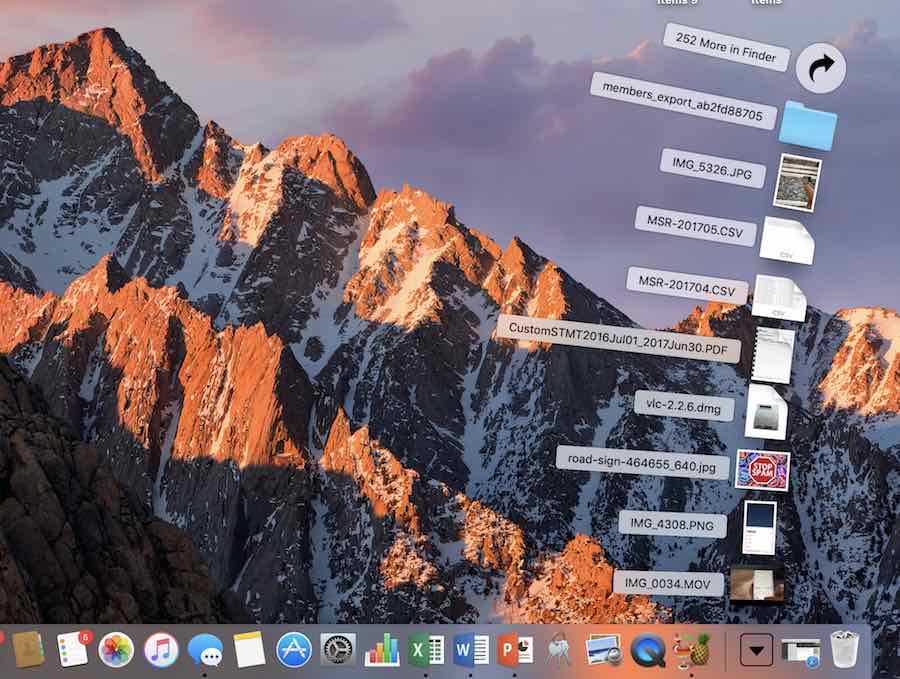 Have you lost your Downloads 'stack' from the right-hand end of the Dock on your Mac? Or is it perhaps displaying in a 'grid' format instead of as a 'fan' (as shown above)? Your Downloads 'stack' is normally found just to the left of the bin on your Mac, but can be inadvertently removed by dragging it out of the Dock. Getting it back is easy. Find out how in this week's members-only Handy Hint for Mac users. (Not yet a member of The iTandCoffee Club? Find out more here ») Related Handy Hints and ArticlesHandy Hints
 The process of re-organsing your files into folders can be quite tedious. But lately, I have been using a different method of moving my files around or choosing a 'Save' location in Finder - one that I am absolutely loving.
Check out this week's Mac Handy Hint for details. (Sign in here first, if you are not already signed in.) Not yet a member of The iTandCoffee Club? Why not join today, for access to iTandCoffee's vast library of Handy Hints, special members-only information sessions and other special offers advertised from time to time. Related topics So many clients that I see have been using their Macs without realising that there is so much additional functionality and features available in the 'Context' menus, available by using the 'secondary click'. But too many have not worked out what activates this secondary click, and how to adjust the settings to suit their needs. For me, I like my 'secondary click' on my iMac's mouse to be a right-click; on my Macbook's trackbook, I click the bottom right corner to give me the 'Context' menu. See the below image for the context menu that I get when I right-click on a file in Finder. Do you know how to access this set of options? 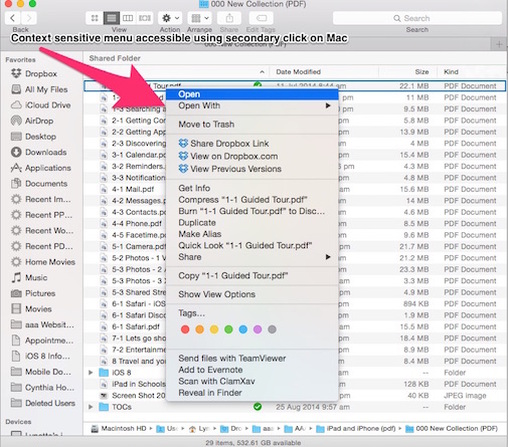 A Handy Hint has been added to the iTandCoffee Handy Hint library, describing how you go about enabling the 'secondary click' and choosing your preferred gesture for this secondary click - it includes both a short video and step-by-step written instructions.
If you are an iTandCoffee Club member, you can access this hint right now by clicking here (but make sure you are signed in first). Not a member yet? Why not join now! 12/3/2014 0 Comments A trick with Finder on your MacI have a couple of files on my Mac that I use ALL the time. While it's really easy to drag the folders that you use all the time into your Finder sidebar (have you tried this)? I had not previously tried to put individual files in the Sidebar (mainly because I hadn't realised that you can!). To put a frequently used file in the Finder Sidebar, just hold down the Command key as you drag the file and drop it 'shortcut' into the sidebar. You will see a line that shows you where you are about to drop the file's shortcut - let go when you see that line in the position that you need. Don't worry - you are not moving the file to the sidebar. You are just moving a reference to it. It stays in its original location. Once you no longer need that quick access the file, just drag it out - you will see it disappear in a 'puff of smoke'! Very cute! Here's a short video showing you how! |
What's on at iTandCoffee ?Below is our list of videos, classes and other events that are coming up soon.
Videos shown are offered for eligible members of the iTandCoffee Club. If you have questions, why not join fun and informative 'user group' meetings, held once a month. All iTandCoffee classes are run as online classes (using Zoom), which means you can attend from anywhere. |


27 Sycamore St, Camberwell, Victoria Australia
Call 1300 885 420
to book an appointment or class, or to enquire about our services and products

|
SENIORS CARD WELCOME HERE:
Seniors Card holders qualify for a 10% discount on all classes booked and paid for online (excludes PTT sessions and classes already discounted during COVID-19 crisis). To activate the discount at the time of booking, select Redeem Coupon or Gift Certificate and enter 10OFFSEN before selecting Pay Now. |

© 2012-2024 iTandCoffee Pty Ltd. All rights reserved ACN: 606 340 434