Call 1300 885 420 or +61 444 532 161
iTandCoffee | Patient help with your personal and business technology
  • Home
  • About
    • About iTandCoffee
    • In the media
    • Testimonials >
      • Testimonials 2020-21
      • Testimonials 2019
      • Testimonials 2018
    • Privacy Policy
    • Other Policies
    • Prices
  • Classes
    • What's On
  • Appointments
  • Books | Videos | Tips
    • Books
    • Videos
    • Blog
    • Newsletter
    • Tips Library
  • Gift Vouchers
  • iTandCoffee Club
    • Members Area
    • About the Club
    • Membership Options
  • Store
  • Contact
  • Home
  • About
    • About iTandCoffee
    • In the media
    • Testimonials >
      • Testimonials 2020-21
      • Testimonials 2019
      • Testimonials 2018
    • Privacy Policy
    • Other Policies
    • Prices
  • Classes
    • What's On
  • Appointments
  • Books | Videos | Tips
    • Books
    • Videos
    • Blog
    • Newsletter
    • Tips Library
  • Gift Vouchers
  • iTandCoffee Club
    • Members Area
    • About the Club
    • Membership Options
  • Store
  • Contact
Search by typing & pressing enter

YOUR CART

Tips, Tricks and News 
about all sorts of technology in your life!

6/8/2016 0 Comments

I think I have found my favourite SIRI command EVER!

My new favourite Siri command
Those of you who know me will know that I really love using Siri on my iPhone and iPad.  

Day in, day out, I use it to set reminders, sent texts, dictate notes, make phone calls, read my emails while I drive (hands free, of course), and so much more. 

This week, I found a Siri command that I have been needing for so long - one that can remind me later about something that I have received, seen, created, etc.

What do I mean by this?  

Well, as an example, I so often get an email or a text that I can't action right at that point in time, but need to remember to action at a later time.  

I don't want to have to trawl through my long list of emails/texts to find it - if I actually do remember to do that!   Flagging in the Mail app doesn't quite work - again, because this requires me to remember to go back and look at my 'flagged' emails.

I had been using Evernote for emails that I needed to action later.  I would forward my emails to my Evernote, and set a reminder there.  An adequate solution, but I will now be using Siri instead because it is SO much easier.  

I now tell Siri to set a reminder (for a particular date/time) about whatever I am looking at on my iPhone (or iPad) screen.  Siri will create that reminder WITH a link that allows me to go straight to that 'thing' (email, message, web page, calendar entry, note, etc), so that I have all the information I need in front of me.​  In the image I have shown in this article, tapping on the little Mail app symbol takes you straight to the applicable mail message.

I am using this every day now and loving my reminders and the quick, easy access they give me to relevant information.

Find out how to use this Siri feature in this week's Handy Hint

If you are interested in finding out more about how to use this great Siri command that will help you to remember to come back to something important, check out this week's Handy Hint.  
See this week's Handy Hint
​You must be an iTandCoffee Club member to view this premium content.  

Joining our iTandCoffee Club costs a measly $30 a year, and gives you access to great tips like this, online class videos and slideshows, and other members-only offers.  Your membership also helps fund iTandCoffee's fortnightly Handy Hint Newsletter for our subscribers and clients.

Have you thought about joining?  Hopefully today is the day!  View more information and join here.

Get even more great tips like this at this iTandCoffee Class

The tip mentioned in this article is just one of a great set of incredibly handy tips that will be covered in the class series

'Bring your Busy Life Under Control using your iPad and iPhone'

which runs in August and September at iTandCoffee in Glen Iris.  This two-part class series will run on:
  • Tue August 16 & 23, 7-9pm
  • Fri Sep 2 & 9, 10am-12pm​​
We love this class series - and we know that you will too.  Join us soon!
​
Book for the 'Bring your Busy Life Under control' class
0 Comments

24/3/2016 0 Comments

My iPhone reads and sends emails and texts, sets reminders, calls the kids to dinner - all hands free!

PictureSave your voice! Get Siri to call the kids to dinner.
If you have the newest of the iPhones or iPads, you will have a access to a great new feature that allows Siri to take and execute your commands without you even touching your device.  This is great for when you are in the car and many other circumstances.

The feature is 'Hey Siri' - where you can say these words to activate Siri, hands free.  (On earlier older devices, the 'Hey Siri' feature is only available when the device is connected to a power source - for example, when it is charging in the car.)

When I am driving between appointments or busily cooking in the kitchen (and, for those of you who know me, don't laugh at that mental image!), I can say 'Hey Siri, read my messages' - and Siri will read all the new texts and iMessages that I have received.

To hear what emails I have received, I say 'Hey Siri, read my emails' or 'Hey Siri, read the emails from my husband'.

I can say 'Hey Siri, set a reminder when I get home to take the meat out of the freezer'.

It makes the time when I am on the road into productive time, and helps me to keep on top of a busy day. 

Siri can even save me from screeching at my kids!

Here is one of my favourites ...

When I want my family to come to dinner, I save going upstairs and downstairs to call them (or screaming DINNNNEEEERRR from somewhere in the middle) by saying 'Hey Siri, text my children dinner time'.  They may not listen to me, but they DO read their texts!

It's those small things that make for family harmony.

But, sometimes Siri is 'listening' when I don't need 'her'

Occasionally, Siri thinks 'she' hears me say 'Hey Siri' when I didn't really say it (or when I am describing the feature to someone else).  She then interrupts my conversation to tell me that she couldn't understand me, or does something else I didn't intend.

To stop Siri from 'listening' when 'she' is not required, all I have to do is put my iPhone (or iPad Pro) 'face down' - then I don't have this problem.  Simple!

Are you interested in finding out how Siri knows who my kids are?

Are you curious to find out how Siri knows who my kids are?  Check out 'Tell Siri about your relationships' handy hint, published way back in October 2015! (with the old logo still).


Related handy hints (for iTandCoffee Club members only) and articles

  • Set alarms without typing
  • Quick Conversions with Siri
  • Tell Siri all who you are!
  • Tell Siri about your relationships
  • Control music tracks when walking without touching your phone 
  • My most frequently use Siri commands
  • Helping Siri understand your pronunciation of names  
  • Siri can have a male voice
  • Making the most of Siri - an article from MacWorld!
  • Siri has a new voice - and she no longer interrupts me!
0 Comments

21/9/2015 0 Comments

Siri just couldn't understand my friend's name.  Here's how I fixed this

Picture
I have a friend called Sueanne, and Sueanne is someone who I call and text on a regular basis.

However, Siri has never been able to understand me when I say 'Call Sueanne', translating this to 'Call Sue and' instead.

This means that I am then asked with Sue I want to call - and Sueanne is not in the list that is provided.

Normally, when Siri 'misunderstands' me, I get the chance to tap 'Edit' at the top right and correct 'her' translation of what I said.  

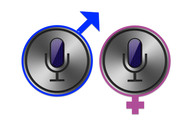
(By the way, if you would rather have a smooth-talking male Siri instead, check out this other Handy Hint about how to change Siri's voice.)

Today, I finally took the time to sort out this Siri annoyance.  It involved setting up some additional information in Sueanne's Contact record.  

Find out how in this Handy Hint for iTandCoffee Club members.  (Sign in here first, if you are not already signed in.)
  • Helping Siri understand your pronunciation of names
Not yet a member of The iTandCoffee Club?  Why not join today, for access to iTandCoffee's vast library of Handy Hints, special members-only information sessions and other special offers advertised from time to time.

Related Articles and Handy Hints
  • Correcting Siri when 'she' gets it wrong!
  • Set alarms without typing
  • Quick Conversions with Siri
  • Tell Siri all who you are!
  • Tell Siri about your relationships
  • Control music tracks when walking without touching your phone 
  • My most frequently use Siri commands
  • Making the most of Siri - an article from MacWorld!
  • Siri has a new voice - and she no longer interrupts me!
0 Comments

21/9/2015 0 Comments

Did you know your Siri can be male?

Picture
My daughter was using Siri over the weekend, and the friend who was with us at the time was surprised to find out that Siri can have a male voice instead of female.

This is so easy to change if you prefer a male voice.  You can even choose 'British Male' if you prefer that to an 'Aussie' voice.

Find out how in this Handy Hint for iTandCoffee Club members.  (Sign in here first, if you are not already signed in.)
  • Siri can have a male voice
Not yet a member of The iTandCoffee Club?  Why not join today, for access to iTandCoffee's vast library of Handy Hints, special members-only information sessions and other special offers advertised from time to time.
0 Comments

19/7/2015 0 Comments

A couple of questions to try asking Siri

Picture
While with a client this week, I was showing the various things that Siri can do for you, and the sort of questions that Siri can answer in a flash.

Here are a couple that I thought I'd share with you - questions I hadn't thought to ask previously, but that will come in useful in future.

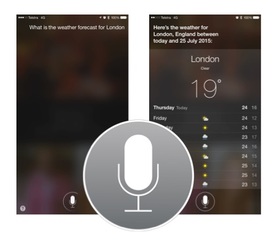
For when you are wanting to call someone overseas but need first to check their local time:
  • What is the time in London

For when you are about to travel to somewhere, and wondering what the weather outlook is at your destination.
  • What is the weather forecast for Sydney.

This is so much quicker than going into the Clock app and looking for the required city, or visiting the Weather app for the forecast.

Not sure how to use Siri?  Check out the below handy hints and articles about Siri to find out more.

Related Handy Hints (for iTandCoffee Club members only - join the club!)
  • Handy Hint 5: Set alarms without typing
  • Handy Hint 6: Quick Conversions with Siri
  • Handy Hint 14: Tell Siri all who you are!
  • Handy Hint 15: Tell Siri about your relationships
  • Handy Hint 37: Control music tracks when walking without touching your phone 
  • Handy Hint 94: My most frequently use Siri commands

Related Blog Articles (free for all readers)
  • Making the most of Siri - an article from MacWorld!
  • Siri has a new voice - and she no longer interrupts me!
  • You need to get to know Siri!
  • Well, I just learned something new about Siri!
  • A heartwarming true story about Siri and a boy
  • What to do when the tooth fairy keeps forgetting to visit!!

0 Comments

22/1/2015 0 Comments

Handy Hint for iPad and iPhone:  You need to get to know Siri!

Picture
Have you found your very own Personal Assistant on your iPhone or iPad?  If not, I highly recommend that you do so soon.  

Introducing yourself to Siri really can your make life so much easier, saving you lots of typing and tapping.  Siri can remind you, guide you, notify you and provide all sorts of information.  I would be lost without 'her'.

Don't be afraid to try to get to know 'her' (or 'him'!).  

Find out here how easy it can be to get Siri working for you >>

0 Comments

18/1/2015 0 Comments

Well, I just learned something new about Siri!

I LOVE it when I learn something new about my iPhone.  

Siri is one of my very favourite things about my iPhone (and iPad), and I use it multiple times every day.  But I had NO idea about the tip described below in this article about Siri:  10 Tips and Tricks to Make Siri More Useful.
 If Siri makes a mistake, tell her

The first couple of times Siri misunderstands your commands, you’ll probably want to scream and drop-kick your iPhone. (Or maybe that’s just me.) But have a little patience and give her a chance to learn from the mistakes.

If Siri misinterprets something, swipe down on the screen to reveal your initial command and then use the “Tap to edit” to correct the statement or question. Not only will she return with new results, she’ll also remember the correction to provide better performance in the future.

Picture
I would have found this very useful yesterday, when I was trying to get Siri to understand my request to 'Call Anne Watts'.  

'She' could not understand, and thought I was saying 'Call and what' - so kept asking me for more information.   So I was forced to ditch Siri and look up the contact to make the call!

Do you want to learn more about using Siri?  Members of The iTandCoffee Club can view the below handy hints and tips about Siri.  

  • Handy Hint 94: A guide to using Siri | My most frequently use Siri commands
  • Handy Hint 5: Set alarms without typing
  • Handy Hint 6: Quick Conversions with Siri
  • Handy Hint 14: Tell Siri all who you are!
  • Handy Hint 15: Tell Siri about your relationships
  • Handy Hint 37: Control music tracks when walking without touching your phone 

Not yet a member of The iTandCoffee Club?  Join here.
0 Comments

22/10/2014 0 Comments

A heartwarming true story about Siri and a boy

Picture
I told my 11 year old son about this article, and it obviously struck a chord with him.  

Later that night I found him trying out having a conversation with Siri - and he was have such a fun time with 'her'!  (Hopefully he won't read this, because It would probably cause a great deal of embarrassment!)

Read about how Siri actually became a bit of a lifesaver for the mother of an autistic child - 'scooped' on the iTandCoffee Scoop.it page.

0 Comments

30/4/2014 0 Comments

This week's Handy Hint is courtesy MacWorld!

I wanted to do a handy hint that provides some great tips for using Siri.  Well, MacWorld has this week published an excellent article and video on this very topic!  So I figure 'why reinvent the wheel'!

Check out this MacWorld article for 16 of the best things that Siri can do for you.  It includes written instructions and a really good video.  Just excuse the ad at the start!
16 things you should know how to do with Siri | Macworld
0 Comments

12/3/2014 0 Comments

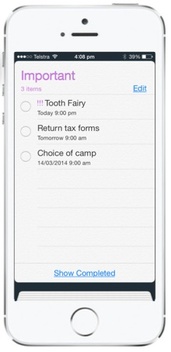
What to do when the tooth fairy keeps forgetting to visit!!

set a reminder for tooth fairy on ipad and iphone
Oh my goodness, the Tooth Fairy has really been slow to respond this week to #4 child's lost tooth!  A week has gone by and still no sign of the $2 coin in the tooth jar.  She's never been this bad!

So what to do?  

Well, I have just set a Reminder to deal with the Tooth Fairy tonight.  It will make a sound and pop up a message up on my screen at 9pm tonight - a suitable time for dealing with Tooth Fairies!

Have you discovered Reminders on your iPad and iPhone?

Telling Siri what you want to be reminded about is a really quick and easy way to create Reminders without having to type a thing!

Just hold down the Home button for a second or two and then tell Siri what you want to be reminded about (eg. "Remind me to put the bins out at 8pm tonight.").  (If you have upgraded to iOS 7.1, you can keep the Home button held down while you give your instruction.)

You will then be asked to confirm the Reminder details and voilà - a reminder is added to your reminder list.  What a great tool for those of us who can't always rely on our memories any more!

(Note.  Siri is only available on iPhone on 4S and newer, and from iPad 3rd generation and newer.  To turn on Siri, go to Settings -> General -> Siri.  You will see there that you can choose for Siri to be either male or female - a new feature of iOS 7.1.)


0 Comments
Forward>>

    Receive great articles like this 
    fortnightly to your Inbox

    Picture

    Follow us on Facebook

    iTandCoffee

    Picture

    Join the iTandCoffee Club

    ​for free content, tutorials, videos, classes, offers, discounts and more

    Join our growing community of local and online members who love learning about their technology - through FREE club sessions, remote/phone support, online tips, tricks and tutorials, special members-only offers and discounts, and more. Membership starts at only $49/year.
    Find out more about The iTandCoffee Club

    What's on at iTandCoffee ?

    Below is our list of videos, classes and other events that are coming up soon.
    ​Videos shown are offered for eligible members of the iTandCoffee Club.
    If you have questions, why not join fun and informative 'user group' meetings, held once a month.
    All iTandCoffee classes are run as online classes (using Zoom), which means you can attend from anywhere.

    Archives

    February 2026
    January 2026
    December 2025
    November 2025
    October 2025
    September 2025
    August 2025
    July 2025
    May 2025
    April 2025
    March 2025
    February 2025
    December 2024
    November 2024
    October 2024
    September 2024
    August 2024
    July 2024
    June 2024
    May 2024
    April 2024
    March 2024
    February 2024
    January 2024
    December 2023
    November 2023
    October 2023
    September 2023
    August 2023
    July 2023
    June 2023
    May 2023
    April 2023
    March 2023
    February 2023
    January 2023
    December 2022
    November 2022
    October 2022
    September 2022
    August 2022
    July 2022
    June 2022
    May 2022
    April 2022
    March 2022
    February 2022
    January 2022
    December 2021
    November 2021
    October 2021
    September 2021
    August 2021
    July 2021
    June 2021
    May 2021
    April 2021
    March 2021
    February 2021
    January 2021
    December 2020
    November 2020
    October 2020
    September 2020
    August 2020
    July 2020
    June 2020
    May 2020
    April 2020
    March 2020
    February 2020
    January 2020
    December 2019
    November 2019
    October 2019
    September 2019
    August 2019
    July 2019
    June 2019
    May 2019
    April 2019
    March 2019
    February 2019
    January 2019
    December 2018
    November 2018
    October 2018
    September 2018
    August 2018
    July 2018
    June 2018
    May 2018
    April 2018
    March 2018
    February 2018
    January 2018
    December 2017
    November 2017
    October 2017
    September 2017
    August 2017
    July 2017
    June 2017
    May 2017
    April 2017
    March 2017
    February 2017
    January 2017
    December 2016
    November 2016
    October 2016
    September 2016
    August 2016
    July 2016
    June 2016
    May 2016
    April 2016
    March 2016
    February 2016
    January 2016
    December 2015
    November 2015
    October 2015
    September 2015
    August 2015
    July 2015
    June 2015
    May 2015
    April 2015
    March 2015
    February 2015
    January 2015
    December 2014
    November 2014
    October 2014
    September 2014
    August 2014
    July 2014
    June 2014
    May 2014
    April 2014
    March 2014
    February 2014
    January 2014
    December 2013
    November 2013
    October 2013
    September 2013
    August 2013
    July 2013
    June 2013
    May 2013
    April 2013
    March 2013
    February 2013
    January 2013
    November 2012
    October 2012
    September 2012
    August 2012
    May 2012

    Categories

    All 1800-number Accessibility Accessories Activity Monitor Adobe Adware AI Airdrop Airplay Airpods Alarms Alerts Android Apple Account Apple Id Apple-id Appleid.apple.com Apple Music Apple News Apple Pay Apple Pencil Apple Tv Apple Watch Apps App Specific Passwords App Store App Windows Apss Audio Autolock Automatic-downloadsupdates Automator Backup Backups Battery Be-connected Be-connected Bigpond Big Sur Bitcoin Bitlocker Blockchain Bluetooth Booklet Books Boot Camp Budgetting Business Buying Guide Calendar Camera Canva Captcha Catalina Cellular Data Centrelink Channel 9 Charging ChatGPT Christmas Chrome Classes Client Stories Clipboard Cloud Cloud-storage Cloud-storage Club Club News Colours Com Compass Contacts Continuity Control-center Control Centre Convert Cookies Copilot COVID COVID 19 COVID-19 Cybersafety Datad777f385d3 Data Usage Delete Desktop Dictation Dock Do Not Disturb Downloads Dropbox DVD Education El-capitan Email Emergency Emojii Encryption Entertainment ESIM Ethernet Evernote Excel Facebook Family Family History Files Finance Finder Find My Find My Car Find-my-iDevice Fingerprint Sensor Fonts Force Reboot Forgetting Curve Fraud Free Friday Gift Ideas Gmail Google Google Drive Google Flights Google Photos Google Sheets Government Services Guides Handbrake Handoff Handy Hints Hard-drive-crash HDD Health High Sierra Home Button Homepod Home Screen Hotmail Housekeeping Humour ICloud ICloud Backup ICloud Drive ICloud Family ICloud Photo Library Identity Identity Theft Images Image-to-text IMAP IMessage Imovie Instagram Internet Internet Issues Internet-options Internet-options Ios Ios-11 Ios-11 Ios-12 IOS 13 IOS 14 IOS 15 IOS 16 IOS 17 IOS 18 IOS 26 Ios Photos IPad Ipad-tips Iphone Iphone-12 IPhone 13 IPhone 16 Iphone-8 Iphone8 Iphone Basics Iphone-calendar IPhone Mirroring Iphone Settings Iphone-x Iphonex Ipod Itandcoffee Itandcoffee Club Itandcoffee News Itandcoffee Services Itandcoffee-swap-shop Itandwine Itunes Junk Keyboard Keychain Kids And Technology Kidsandtechnology Lifestyle Lock Screen Mac Mac-basics Mackeeper Mac Mail Mac-mail Mac-monday Macos MacOS 26 MacOS Sequoia Mac Photos Mac-photos Mac Storage Mac Tutorials Mac-videos Magnifier Magsafe Mail Malware Maps Measure Media Medical-id Messages Messenger Microphone Microsoft Microsoft 365 Mobile Banking Mobile Data Mobile-data Mobile Porting Mojave Monterey Motion Mouse Movies Multitasking Music MyGov My-health-record NBN Netflix Notes Notifications Number Porting Office 365 Onedrive Onenote Online Safety Online-safety Optusnet Os-x Outlook Pages Parental Controls Passwords Paypal PDF Personal Hotspot Phishing Phone Photo Book Photo-books Photos Photos On Mac PLAYLIST Podcasts Popups Powerpoint Preview Printing Privacy Productivity Product Launch Publicity Publicityads57a389ac69 Publisher Purchasing-an-idevice Qa QR Code Quicktime Raise-to-wake Ransomware Reachability Reboot Recommendations Recovery Relay Reminders Remotewipe Repairs Restore Restrictions Rings Rotation-lock Router Safari Safari-favourites Samsung Santa Scam Scam Email Scams Scan Scannable Scanning School-ipad Scoopit Screen Screen-brightness Screensaver Screenshots Screen Time Scrolling Secondhand-devices Security Sell Seniors Seo Services Sessions Settings Share Shared-calendar Shop Shopping Shortcuts Sierra Signature Silent-auction Sim Siri Skype Slideover Slides Slideshow Slideshows Slow-device Slow-mac Smart-tv Sms Snapfish Social Media Socialmedia Software Update Softwareupdate Software Updates Sonoma Sounds Spam Spinning-beachball Split Screen Split View Spotlightsearch Startup Storage Storage Space Streaming Subscriptions Sunrise Switch Symbols Sync System Preferences Task Manager Tasks Task-switcher Taskswitcher Teams Technology Technologyarticles Technologydependency Technology-lifestyle Technology-solutions Technologytips Techsupport Telco Telcos Telstra Telstracomplaint Text Text Replacements Theft The-katering-show Thermomix Thesenior Timemachine Time-to-leave Tio Toys Trackpad Training Videos Transcribe Translate Travel Travel Sim Tripadvisor Troubleshooting Tutorial Tutorials TV Two Factor Authentication Twofactor-authentication Two-step-verification Typing Typing Shortcuts Undo Universal Control Unlock Update Updates Upgrade Uppercase Usage User Group Utilities Ventura Video Video-blog Videos Virus Voice-and-data Voicemail Voice-memos Volume Vpn Wallet Wallpaper Warnings Weather Web Browser Website Weebly Whatsapp Widgets Wi-fi Wi-Fi Wifi Wifi084d04ddac Wifi-calling Windows Windows 10 Windows10 Windows 11 Word Wordpress Worldclock Yosemite Youtube Zoom

    RSS Feed

​​Call  +61 444 532 161  or  1300 885 420

​to book an appointment or class, or to enquire about our services and products


Seniors Card Welcome
SENIORS CARD WELCOME HERE:
Seniors Card holders qualify for a 10%* discount on eligible classes booked and paid for online. 
To activate the discount at the time of booking, select Redeem Coupon or Gift Certificate and enter 10OFFSEN before selecting Pay Now
Seniors can also save $5** on the first full hour of appointments booked online. Enter Coupon Code of 
BASEN5 when booking to receive this discount.
* Some heavily discounted classes are excluded from the 10% class discount offer.
** Where more than one type of discount is available, only one type of discount can be used.

Services
Classes
Event Calendar
Private Appointments
Gift Vouchers
Remote support
​Business Services
​Help for families

Online Content
​Newsletter
User Guides
Video tutorials/classes
Tips and Hints
​Blog
iTandCoffee Club
About the Club
Free Club Sessions
Sign In/View Account
Members Area
Prices/Policies
Prices
Privacy
Cancellations, Refunds, Returns
About iTandCoffee
Home
About

​Contact us
Testimonials
In the press

Picture
​© 2012-2026 iTandCoffee Pty Ltd. All rights reserved  ACN: 606 340 434