
Call 1300 885 420 or +61 444 532 161
iTandCoffee | Patient help with your personal and business technology
  • Home
  • About
    • About iTandCoffee
    • In the media
    • Testimonials >
      • Testimonials 2020-21
      • Testimonials 2019
      • Testimonials 2018
    • Privacy Policy
    • Other Policies
    • Prices
  • Classes
    • What's On
  • Appointments
  • Books | Videos | Tips
    • Books
    • Videos
    • Blog
    • Newsletter
    • Tips Library
  • Gift Vouchers
  • iTandCoffee Club
    • Members Area
    • About the Club
    • Membership Options
  • Store
  • Contact
  • Home
  • About
    • About iTandCoffee
    • In the media
    • Testimonials >
      • Testimonials 2020-21
      • Testimonials 2019
      • Testimonials 2018
    • Privacy Policy
    • Other Policies
    • Prices
  • Classes
    • What's On
  • Appointments
  • Books | Videos | Tips
    • Books
    • Videos
    • Blog
    • Newsletter
    • Tips Library
  • Gift Vouchers
  • iTandCoffee Club
    • Members Area
    • About the Club
    • Membership Options
  • Store
  • Contact
Search by typing & pressing enter

YOUR CART

Tips, Tricks and News 
about all sorts of technology in your life!

2/7/2017 1 Comment

For you Aunty V!  What does 'patching' mean (in relation to 'ransomware')?

Picture
I had a call from my lovely Aunty V during the week, after the news came out about yet another 'ransomware' attack.

She asked me if I could explain a term that was being used in news reports, about the need to 'patch' your computer to ensure that you are protected against attacks.

What does 'patching' mean?

Microsoft, Apple, Google (i.e. Alphabet) are constantly working on the software that runs our computers and mobile devices (know as operating systems), to ensure that evil-doers cannot gain access to our devices and lives via the internet.

Microsoft's computer operating system is Windows.  Apple's computer operating system is OS X or, more recently, MacOS.  Apple mobile devices run iOS, and many other mobile devices run Google's Android operating system. 

All of these operating systems are, at times, targeted by hackers who try to find 'holes' in the security of these system, so that they can sneak in and steal stuff from computers that run the operating system - or even (in the case of ransomware) scramble all the information that is on the computer so that we can no longer use it.

(I'll leave you to read up about ransomware in this article from Wikipedia:  Ransomware - Wikipedia.)

Most commonly, it is Windows that is the target of such attacks (as has been the case with the last two highly publicised 'ransomware' attacks). 

Microsoft, Apple and Google have, in most cases, already 'patched' the hole in their operating system security, and 'released' that patch as an 'update' to our computers' operating systems.  

Any computer on which the 'patch' is installed is protected if you, inadvertently, click on a nasty link or file in an email or on a website that might have otherwise taken advantage of the security hole. 

Are you patched?

On some computers and mobile devices, these updates (patches) are automatically installed. 

The problem is that many computers have not been 'patched' because the business or individual user of the computer has not installed the updates that have been made available. 

This has left them at risk of falling victim to the ransomware attacks that seem to be getting more and more frequent.

How to check and how to patch

The big question is how do you 'patch' your computer or device.

To help you with this, we have included some 'how to' articles about below, that will (hopefully) help you ensure your computer or mobile device is up to date with all 'patches'.
  • Windows 7
  • Windows 10
  • Mac
  • iPad, iPhone, iPod Touch (iOS)
  • Android mobile devices

We are here to help if you need assistance

We know that for many of our clients and subscribers, the information provided in the above articles will still leave them unsure how to proceed.

If you need assistance with this area, iTandCoffee is available for one-on-one appointments at the shop in High Street Glen Iris, or in your own home (depending on location).

Over-the-phone support can also be provided if required.

Just call 1300 885 420 or email [email protected] to make an appointment.
1 Comment

19/5/2017 0 Comments

My device shows the internet is working, but it is not!

Picture
Do you sometimes find that, even though your device shows a 'full' 'Wi-Fi' symbol on your device (your computer, iPhone, iPad, or other device), you still don't seem to have any internet?

This issue came up in appointments with two clients this week.

​It is important to know that, even if you see full bars on your Wi-Fi symbol, this does not necessarily mean that you have internet.  The Wi-Fi symbol is just showing that you are connected to your router.  However, the router itself may have lost its connection to the internet.

In this scenario, your best bet is to go and switch off your router, leave it for a few seconds, then turn it back on.  In many cases this will restore your internet connection (once all of the router's lights are back on).

If it doesn't, the next step is to check if there is an outage in your area.

Here is a previous article on this topic:  If you have been having trouble lately with your internet or with sending mail ...

0 Comments

5/12/2016 0 Comments

How do I speed up the startup of my Windows 10 computer?

Speeding up Windows 10 startup
Cynthia D asked iTandCoffee this week:  "Last year you gave me that for how to clean up my computer so it would be faster. And it worked amazingly!
​
I have tried to do it again but Windows has now upgraded to 10 and the configurations are all different and I can’t work out how to do it again.  Would you mind forwarding me your instructions I can use with windows 10 so I can have another clean out?"

How can you manage what processes are opened at each startup?

The article that Cynthia referred to was an iTandCoffee Hany Hint from a while back, that describes how to stop unnecessary processes from opening up on startup of the computer.  Here is that article, applicable to Windows 7 and earlier.
​
With Windows 10, accessing the list of 'startup' items is achieved differently.  Here is an article that covers this topic.

Related Handy Hints and Articles

  • ​My frustrations with Windows 10!       
  • What do you do when your Windows computer's web browser is hijacked by Ads     
  • How can I read windows mail files attached to my Mac Mail message?       
  • Getting edited iPhone (or iPad) photos across to your computer using iCloud Shared Streams 
  • Importing iPad and iPhone photos to a Windows computer     
  • Delete Photos from device using Windows   ​ ​
0 Comments

25/11/2016 0 Comments

Mac crashing after Sierra upgrade - here's what was causing this problem

iCloud Photo library crashing my Sierra Mac
Since updating my iMac to MacOS Sierra, I have suffered constant freezes and crashes - which have gotten worse and worse, to the point where I have had to restart my Mac several times a day.

I have been nearly tearing my hair out - something that I can't afford to do!

I had tried everything I could think of to diagnose the problem.  The hard drive is fine, there is no hardware issue, no sneaky malware hijacking my computer, and I have been monitoring ingoing and outgoing network traffic using a handy app called Little Snitch.  

Nothing I tried seem to help resolve my problem.

I was on the verge of wiping my Mac and re-installing Sierra when I decided to try one last thing.

Diagnostic and Usage Data log provides a hint

I had noticed in my Mac's 'Diagnostic and Usage Data' log file (which is accessed via the Console utility) that a process associated with the Photos app and iCloud Photo Library was generating an error on a regular basis, and often just before my Mac crashed.  

(I don't necessarily recommend iCloud Photo Library for clients due to the limitations of this service at the moment and problems that I have encountered on a regular basis.)

So, I figured it might be worth disabling the iCloud Photo Library sync'ing process for 24 hours - to see if this made a difference.

Pausing iCloud Photo Library's Update process fixed my problem

I opened my Photos app, went to Photos -> Preferences -> iCloud and, under the iCloud Photo Library Option, chose 'Pause for one day'.

Just like magic, my spinning beachballs, pauses and crashes suddenly stopped!

I then worked for quite a while on many different things - things that had previously been causing issues - and had no problems.

The minute I 'resumed' the iCloud Photo Library sync'ing, my problems started all over again.

So, for now, I am making sure that I disable iCloud Photo Library each day before I start work (or as soon as I log in/reboot) and hope that a forthcoming Sierra update will resolve this issue.

I will raise a support request with Apple to try to work out what might be causing this problem, and report back on any findings.

Update 5/12/16:  Before going down the path of raising a support request, I decided to wipe my Photos library and recreate it from iCloud Photo Library.  This took many days (as it had to download nearly 140GB of photos and videos), but seems to have resolved the problem - for now!

Related articles and handy hints

  • Could your Mac have a problem with its RAM?
  • Practical tips on how to get your Mac performing better
  • Conquer your Mac's spinning beachball
  • How to check if your Mac is running out of storage space
  • Have you discovered the wonderful 'Undo' function on your Mac?
  • Where is Ctrl-Alt-Del on my Mac?  How do I 'force quit' when an app is mis-behaving?
  • Storage issues on my Macbook Air after migrating from iPhoto to Photos
  • For anyone who has regretted downloading MacKeeper to their Mac
  • Macs can catch viruses too!
  • How to deal with a Mac web browser that has been hijacked by ads!
  • Clearing up old  iTunes backups on your Mac to free up storage
0 Comments

8/10/2016 0 Comments

Working out what's slowing down your Mac (and giving you that dreaded 'spinning beachball of death'!)

What is causing my Mac's spinning beachball
Just today, while trying to write an article for this fortnight's iTandCoffee Handy Hint Newsletter, I found that my Mac started giving me the dreaded 'spinning beachball of death'.  

It was looking pretty dire - I couldn't do anything for several minutes, which was very frustrating.

I wanted to avoid the drastic step of shutting down my Mac by holding down the power button, as it is best to try to shut down 'gracefully' if at all possible.  Also, I was busy converting a video and did not want to stop that process.


To solve my Mac's problem, I used a standard utility on my Mac, one that showed me what was going wrong.  

A particular web page that I had opened was the cause of my problem.  This web page was showing that it was using nearly 5GB of my computer's working memory, its RAM.   
What a hog!  No other process could get a look-in, and this was causing my spinning beachball.

Find out what I did to resolve this issue in this Handy Hint for iTandCoffee Club members:
  • How to work out what is slowing down your Mac (and perhaps giving you a 'spinning beachball of death')

Not yet a member of the iTandCoffee Club?  Why not JOIN TODAY for all sorts of great tips like this and to take advantage of a range of other great content (videos, slideshows, articles), services and discounts for members.  

​(As a limited offer for new iTandCoffee Club members, join by 14/10/16 to receive iTandCoffee's 95-page guide "Introduction to the iPad and iPhone - A Guided Tour (iOS 10 Edition)" for FREE.  Find out more HERE›)


Other hints and articles about troubleshooting Mac problems

  • Could your Mac have a problem with its RAM?
  • Practical tips on how to get your Mac performing better
  • Conquer your Mac's spinning beachball
  • How to check if your Mac is running out of storage space
  • Have you discovered the wonderful 'Undo' function on your Mac?
  • Where is Ctrl-Alt-Del on my Mac?  How do I 'force quit' when an app is mis-behaving?
  • Storage issues on my Macbook Air after migrating from iPhoto to Photos
  • For anyone who has regretted downloading MacKeeper to their Mac
  • Macs can catch viruses too!
  • How to deal with a Mac web browser that has been hijacked by ads!
  • Clearing up old  iTunes backups on your Mac to free up storage
0 Comments

29/5/2016 0 Comments

Even my own Mac can have a bad week!  The spinning beachball of death turned into the black screen of death!

Picture
Oh dear.  My poor 3.5 year old iMac (the 28in variety) suffered a major, major failure this past week!

After suffering frequent and persistent 'spinning beachballs of death' last week, I worried that something was amiss and, between other work, started the process of diagnosing what was wrong with it.

It seemed that the hard drive passed all checks, and tests showed that the RAM and other hardware were fine.

But, my poor Mac was certainly still unwell, so I tried a couple of other resets - all to no avail.

After I had exhaused nearly all the tests and reset my login preferences, I decided to start up my Mac in something called Safe Mode - at which point, I got the dreaded black screen of death.

From that point on, any attempt to start the iMac up failed - it would look like it was starting but just give up and shut off after a few seconds.

At this point, I thought I had better admit defeat and booked a Genius Bar appointment at Chadstone's Apple Store - dreading the prospect of lugging my massive iMac through Chaddy for an inspection by a young Genius.

I decided that I would try one final thing before my appointment - pre-empting what I thought that the Genius would, most likely, suggest.  

Given that a successful Time Machine backup had been completed 5 days before it 'died' (thank goodness), I decided to do a full restore from that backup.   (Unfortunately, I would lose a couple of days' of work - the Time Machine had, without me realising, stopped working over a weekend when I did a lot of movie editing. Drat!)

I then waited the 40 hours it took to restore my iMac from the Time Machine backup, holding very little hope that my problem would be resolved.

Well, the good news is ....

It worked!!  And I am writing this article from my Lazarus iMac.  No more prolonged spinning beachballs, no black screen of death, and (thank goodness), no visit to the Geniuses!

I am just kicking myself I didn't take heed of the warning signs before it stopped functioning - I should have checked the backup was working.  This would have prompted me to separately back up the movies I was working on, to Dropbox or an external drive.

Hindsight is such a wonderful thing, isn't it.

The key message for everyone is - make sure you are backing up your Mac!  You never know when something could go wrong and, without a backup, you may lose EVERyTHING.


Here is a collection of articles that I referred to while trying to diagnose my problem ...

  • A fix for OS X hanging at startup, even in Safe Mode
  • ​A fix for the OS X Black Screen of Doom
  • ​Here are 6 fixes for common Mac performance problems
  • Could your Mac have a problem with its RAM?   
  • A couple of other handy Mac tips
  • Handy Hint 105: Conquer your Mac's spinning beachball 

0 Comments

19/12/2015 0 Comments

Could your Mac have a problem with its RAM?

This is a test that I will be doing later today on my iMac (along with some others), as it has behaving a little strangely this week.

This article from MacWorld tells you about the symptoms associated with RAM issues.  Worth filing away for future reference!


Picture
Do you have bad RAM? How to find it and how to fix it - Macworld Australia
0 Comments

18/12/2015 0 Comments

Clearing out your iPhone's or iPad's memory (RAM) may help if it is mis-behaving

Picture
Not only as my Mac been mis-behaving this week - my new iPhone 6S Plus has been getting a 'Storage full' message, even though it has about 30GB of available storage!   This morning it showed this message for the second time in two days, then shut itself down.  Grrrr.

This was so strange, as it had shown that I had 23GB of storage yesterday afternoon - and I had not taken any photos or added anything to it since then.

What to try first in a situation like this

If you can identify the app that is causing the problem, you can double-press the home button and 'swipe up' that app to close it.  Sometimes this sorts out whatever is going wrong.

In a case such as mine where I was not sure what was causing the problem, there are a couple of other things to try.

Try a clear out of its memory

Your iPad and iPhone is pretty good at managing its memory (RAM), but on occasion can get itself into a bit of a knot.  

You can clear out your device's memory and see if that solves your problem - see the below article for instructions. This does not delete anything, and your list of 'recently used' apps remains intact.  

How can I clear my iPhone's memory without rebooting?

Perform a hard re-boot

The next thing I tried was a 'hard re-boot' my iPhone by holding down the Sleep switch and Home button for about 10 seconds, until the screen went blank and the white Apple symbol appeared - at which point I let go.  

This does a 'flush-out' (technically speaking!) and, once this is done, takes you back to the Lock Screen.  If you normally use your fingerprint to unlock, you will need to enter your passcode the first time you access your i-Device after the reboot.

Did this solve my problem?


Normally, one of these methods would fix whatever was amiss with my i-Device.  

In this case, however, it seemed to be something going awry with my Photos and iCloud Photo Library.

As soon as I deleted all photos from my Recently Deleted album in photos - something I had already done yesterday to (temporarily) solve the problem, 30GB was magically freed up - even though the storage used by my Photos did not show any change.  (I went to Settings->General->Storage and iCloud Usage to check this.)

I'll be taking a trip to the Apple Store if this problem occurs again!
0 Comments

28/11/2015 0 Comments

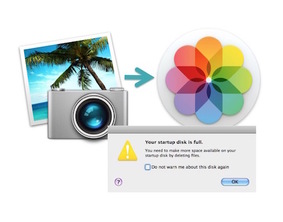
Storage issues on my Macbook Air after migrating from iPhoto to Photos

Picture
If you have a lot of photos on your Mac, you may find that you are suddenly running short of storage space on your hard drive after you migrate your photos from iPhoto to the new Photos app.

On my 128GB Macbook Air, I suddenly found that I was getting a message popping up telling me that 'Your startup disk is full'.

Here's something that Apple doesn't tell you when you perform this migration to Photos: it leaves a copy of your photos behind in your iPhoto library, and and creates a new Photos library.  This means that your photos are suddenly taking up twice as much space as they used to!


Read More
0 Comments

11/11/2015 0 Comments

Practical tips on how to get your Mac performing better

Having just run the first 'Getting to know your Mac' class of the November series, it seemed very timely that this article appeared today on the UK Business Insider website - especially given that the performance issues were one of the topics discussed. 

The article give some really practical tips for how to (potentially) fix a Mac that is a bit sluggish or is getting that dreaded 'spinning beachball of death'!  ​                                            
Picture
​Here is a link to the article ››          

Related articles about your Mac


Below are some great Mac tips and tricks from the iTandCoffee Club's Handy Hint library.  Are you a member?  Why not Join Today!
  • Where is Ctrl-Alt-Del on my Mac? / Force Quitting applications
  • Enable right-click on your Mouse or Trackpad to get access to lots of 'context' options.
  • Most used keyboard shortcuts
  • Some more great Mac Keyboard Shortcuts
  • Mac 'Sleep' settings - how to set the inactive period before your Mac sleeps, and how to require a password after it wakes
  • Telling your Mac to startup with a 'clean slate' each time - preventing apps from automatically starting up each time you start up or log in 
  • Conquer your Mac's spinning beachball
     How to check if your Mac is running out of storage space                                                 
0 Comments
<<Previous
Forward>>

    Receive great articles like this 
    fortnightly to your Inbox

    Picture

    Follow us on Facebook

    iTandCoffee

    Picture

    Join the iTandCoffee Club

    ​for free content, tutorials, videos, classes, offers, discounts and more

    Join our growing community of local and online members who love learning about their technology - through FREE club sessions, remote/phone support, online tips, tricks and tutorials, special members-only offers and discounts, and more. Membership starts at only $49/year.
    Find out more about The iTandCoffee Club

    What's on at iTandCoffee ?

    Below is our list of videos, classes and other events that are coming up soon.
    ​Videos shown are offered for eligible members of the iTandCoffee Club.
    If you have questions, why not join fun and informative 'user group' meetings, held once a month.
    All iTandCoffee classes are run as online classes (using Zoom), which means you can attend from anywhere.

    Archives

    November 2025
    October 2025
    September 2025
    August 2025
    July 2025
    May 2025
    April 2025
    March 2025
    February 2025
    December 2024
    November 2024
    October 2024
    September 2024
    August 2024
    July 2024
    June 2024
    May 2024
    April 2024
    March 2024
    February 2024
    January 2024
    December 2023
    November 2023
    October 2023
    September 2023
    August 2023
    July 2023
    June 2023
    May 2023
    April 2023
    March 2023
    February 2023
    January 2023
    December 2022
    November 2022
    October 2022
    September 2022
    August 2022
    July 2022
    June 2022
    May 2022
    April 2022
    March 2022
    February 2022
    January 2022
    December 2021
    November 2021
    October 2021
    September 2021
    August 2021
    July 2021
    June 2021
    May 2021
    April 2021
    March 2021
    February 2021
    January 2021
    December 2020
    November 2020
    October 2020
    September 2020
    August 2020
    July 2020
    June 2020
    May 2020
    April 2020
    March 2020
    February 2020
    January 2020
    December 2019
    November 2019
    October 2019
    September 2019
    August 2019
    July 2019
    June 2019
    May 2019
    April 2019
    March 2019
    February 2019
    January 2019
    December 2018
    November 2018
    October 2018
    September 2018
    August 2018
    July 2018
    June 2018
    May 2018
    April 2018
    March 2018
    February 2018
    January 2018
    December 2017
    November 2017
    October 2017
    September 2017
    August 2017
    July 2017
    June 2017
    May 2017
    April 2017
    March 2017
    February 2017
    January 2017
    December 2016
    November 2016
    October 2016
    September 2016
    August 2016
    July 2016
    June 2016
    May 2016
    April 2016
    March 2016
    February 2016
    January 2016
    December 2015
    November 2015
    October 2015
    September 2015
    August 2015
    July 2015
    June 2015
    May 2015
    April 2015
    March 2015
    February 2015
    January 2015
    December 2014
    November 2014
    October 2014
    September 2014
    August 2014
    July 2014
    June 2014
    May 2014
    April 2014
    March 2014
    February 2014
    January 2014
    December 2013
    November 2013
    October 2013
    September 2013
    August 2013
    July 2013
    June 2013
    May 2013
    April 2013
    March 2013
    February 2013
    January 2013
    November 2012
    October 2012
    September 2012
    August 2012
    May 2012

    Categories

    All 1800-number Accessibility Accessories Activity Monitor Adobe Adware AI Airdrop Airplay Airpods Alarms Alerts Android Apple Id Apple-id Appleid.apple.com Apple Music Apple News Apple Pay Apple Pencil Apple Tv Apple Watch Apps App Specific Passwords App Store App Windows Apss Audio Autolock Automatic-downloadsupdates Automator Backup Backups Battery Be-connected Be-connected Bigpond Big Sur Bitcoin Bitlocker Blockchain Bluetooth Booklet Books Boot Camp Budgetting Business Buying Guide Calendar Camera Canva Captcha Catalina Cellular Data Centrelink Channel 9 Charging ChatGPT Christmas Chrome Classes Client Stories Clipboard Cloud Cloud-storage Cloud-storage Club Club News Colours Com Compass Contacts Continuity Control-center Control Centre Convert Cookies Copilot COVID COVID 19 COVID-19 Cybersafety Datad777f385d3 Data Usage Delete Desktop Dictation Dock Do Not Disturb Downloads Dropbox DVD Education El-capitan Email Emergency Emojii Encryption Entertainment ESIM Ethernet Evernote Excel Facebook Family Family History Files Finance Finder Find My Find My Car Find-my-iDevice Fingerprint Sensor Fonts Force Reboot Forgetting Curve Fraud Free Friday Gift Ideas Gmail Google Google Drive Google Flights Google Photos Google Sheets Government Services Guides Handbrake Handoff Handy Hints Hard-drive-crash HDD Health High Sierra Home Button Homepod Home Screen Hotmail Housekeeping Humour ICloud ICloud Backup ICloud Drive ICloud Family ICloud Photo Library Identity Identity Theft Images Image-to-text IMAP IMessage Imovie Instagram Internet Internet Issues Internet-options Internet-options Ios Ios-11 Ios-11 Ios-12 IOS 13 IOS 14 IOS 15 IOS 16 IOS 17 IOS 18 IOS 26 Ios Photos IPad Ipad-tips Iphone Iphone-12 IPhone 13 IPhone 16 Iphone-8 Iphone8 Iphone Basics Iphone-calendar IPhone Mirroring Iphone Settings Iphone-x Iphonex Ipod Itandcoffee Itandcoffee Club Itandcoffee News Itandcoffee Services Itandcoffee-swap-shop Itandwine Itunes Junk Keyboard Keychain Kids And Technology Kidsandtechnology Lifestyle Lock Screen Mac Mac-basics Mackeeper Mac Mail Mac-mail Mac-monday Macos MacOS 26 MacOS Sequoia Mac Photos Mac-photos Mac Storage Mac Tutorials Mac-videos Magnifier Magsafe Mail Malware Maps Measure Media Medical-id Messages Messenger Microphone Microsoft Microsoft 365 Mobile Banking Mobile Data Mobile-data Mobile Porting Mojave Monterey Motion Mouse Movies Multitasking Music MyGov My-health-record NBN Netflix Notes Notifications Number Porting Office 365 Onedrive Onenote Online Safety Online-safety Optusnet Os-x Outlook Pages Parental Controls Passwords Paypal PDF Personal Hotspot Phishing Phone Photo Book Photo-books Photos Photos On Mac PLAYLIST Podcasts Popups Powerpoint Preview Printing Privacy Productivity Product Launch Publicity Publicityads57a389ac69 Publisher Purchasing-an-idevice Qa QR Code Quicktime Raise-to-wake Ransomware Reachability Reboot Recommendations Recovery Relay Reminders Remotewipe Repairs Restore Restrictions Rings Rotation-lock Router Safari Safari-favourites Samsung Santa Scam Scam Email Scams Scan Scannable Scanning School-ipad Scoopit Screen Screen-brightness Screensaver Screenshots Screen Time Scrolling Secondhand-devices Security Sell Seniors Seo Services Sessions Settings Share Shared-calendar Shop Shopping Shortcuts Sierra Signature Silent-auction Sim Siri Skype Slideover Slides Slideshow Slideshows Slow-device Slow-mac Smart-tv Sms Snapfish Social Media Socialmedia Software Update Softwareupdate Software Updates Sonoma Sounds Spam Spinning-beachball Split Screen Split View Spotlightsearch Startup Storage Storage Space Streaming Subscriptions Sunrise Switch Symbols Sync System Preferences Task Manager Tasks Task-switcher Taskswitcher Teams Technology Technologyarticles Technologydependency Technology-lifestyle Technology-solutions Technologytips Techsupport Telco Telcos Telstra Telstracomplaint Text Text Replacements Theft The-katering-show Thermomix Thesenior Timemachine Time-to-leave Tio Toys Trackpad Training Videos Transcribe Translate Travel Travel Sim Tripadvisor Troubleshooting Tutorial Tutorials TV Two Factor Authentication Twofactor-authentication Two-step-verification Typing Typing Shortcuts Undo Universal Control Unlock Update Updates Upgrade Uppercase Usage User Group Utilities Ventura Video Video-blog Videos Virus Voice-and-data Voicemail Voice-memos Volume Vpn Wallet Wallpaper Warnings Weather Web Browser Website Weebly Whatsapp Widgets Wi-fi Wi-Fi Wifi Wifi084d04ddac Wifi-calling Windows Windows 10 Windows10 Windows 11 Word Wordpress Worldclock Yosemite Youtube Zoom

    RSS Feed

27 Sycamore St, Camberwell, Victoria Australia
(also located in 
Daylesford)

​​Call  +61 444 532 161  or  1300 885 420

​to book an appointment or class, or to enquire about our services and products


Seniors Card Welcome
SENIORS CARD WELCOME HERE:
Seniors Card holders qualify for a 10%* discount on eligible classes booked and paid for online. 
To activate the discount at the time of booking, select Redeem Coupon or Gift Certificate and enter 10OFFSEN before selecting Pay Now
Seniors can also save $5** on the first full hour of appointments booked online. Enter Coupon Code of 
BASEN5 when booking to receive this discount.
* Some heavily discounted classes are excluded from the 10% class discount offer.
** Where more than one type of discount is available, only one type of discount can be used.

Services
Classes
Event Calendar
Private Appointments
Gift Vouchers
Remote support
​Business Services
​Help for families

Online Content
​Newsletter
User Guides
Video tutorials/classes
Tips and Hints
​Blog
iTandCoffee Club
About the Club
Free Club Sessions
Sign In/View Account
Members Area
Prices/Policies
Prices
Privacy
Cancellations, Refunds, Returns
About iTandCoffee
Home
About

​Contact us
Testimonials
In the press

Picture
​© 2012-2025 iTandCoffee Pty Ltd. All rights reserved  ACN: 606 340 434