
|
7/8/2016 2 Comments What do you do if your Safari session is 'locked up' by a nasty screen that won't go away?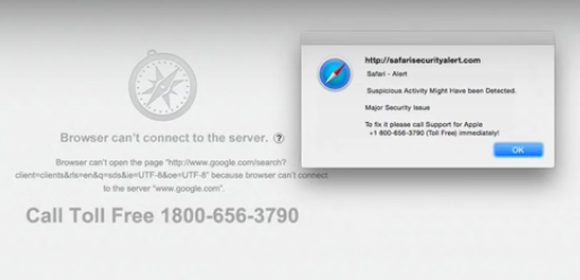 In another recent article on the blog, I told the story of a young man whose Mac Safari session had appeared to be under attack - locking up and preventing him from doing any web browsing.
Even if he closed Safari, even when he restarted his Mac, he could not stop this nasty screen taking over his browsing session. This is a form of Malware, and to stop it occurring, it is necessary to access Safari Preferences and Remove Website Data ... However, how do you get into the Safari preferences if this screen keep taking over and preventing any selection of Safari options? Find out how to resolve this sort of problem in this week's Handy Hint, for iTandCoffee Club Members.
2 Comments
3/6/2016 0 Comments Does your Safari have a black or white background on your iPad or iPhone? What does this mean?This week, I met with an iTandCoffee Newsletter subscriber and iTandCoffee Club member who had been having issues when clicking on links in iTandCoffee newsletters. He was finding that, even though he entered his login details an told Safari to 'remember' is details, each time he click on a 'members-only' link, he was being forced to enter his login details again. This was making it almost impossible for him to read iTandCoffee articles. Well, it turned out that the problem was that his Safari app was in 'Private Browsing' mode, and that this was causing his problems. What is Private Browsing Mode? If the background behind your Safari search bar (at top) is black, it means you are in 'Private Browsing' Mode. If not, you are in 'Normal Browsing' mode. The first image below shows a Safari session in Private mode, whereas the next shows normal browsing.
But, what does it mean to be in 'Private' vs 'Normal' browsing mode? Find out more in this week's Handy Hint for iTandCoffee Club members by selecting the below button. If you are not yet a member, why not Join Today? Membership only costs $30 per year. 20/5/2016 3 Comments Do your kids tell you that you should use Chrome on your Mac instead of Safari? I have lost count of how many times recentlyI have seen clients who have Macs and are running Chrome as their web browser.
Most of the time, when I ask them why they are using Chrome, they tell me it is because their kids told them that it is so much better than Apple's built-in web browser, Safari. These clients have no real reason to prefer Chrome over Safari - the are just taking the advice of the supposedly tech-savvy younger generation. Well, guess what?! The younger generation don't always know best on technology matters. I do not use Chrome on my Mac. I use Safari. Why? My Mac is an Apple device, and Apple has built Safari to work on my Mac - so I am happy to use Safari. I have never found Safari limiting and, since it closely matches the Safari App on the iPad and iPhone, it offers a consistent 'experience' between the Mac and the iPad/iPhone. Chrome is a very 'power hungry' app and can drain you Macbook battery more rapidly than Safari. As an intensive user of my web-browser on my Macbook, I do not want to see my battery usage wasted. Quite often, IT suipport people who are not familiar with Mac will blame Safari for issues that they can't resolve - and recommend the Mac owner download and use Chrome instead of Safari. Personally, I have never found a website that does not work with Safari. For the majority of iTandCoffee clients, I would recommend sticking with Apple's standard Apps for Mac, and therefore sticking with Safari - despite what the kids (or Grandkids) and 'Windows-only' people say. For those interested in reading more, here are some articles comparing web browsers. 28/11/2015 0 Comments What are all those squares I see in Safari on my iPad and iPhone when I tap the Search bar? This question comes up at every iTandCoffee class about Safari.
What are those squares that appear when you tap the 'Search or Website Address' bar at the top of the Safari screen on you iPad or iPhone (or even on your Mac). Well, these are your 'Favourite' websites. If you see the set that are shown on in the image here, you may think "They are not my favourites!".  It is such a common occurrence at iTandCoffee to see a client's computer littered with duplicate files in the Downloads area.
This is usually the result of multiple attempts to download a file, software upgrade or some other content, where the Mac user is not aware of where that download went, or what to do with it! This Mac handy hint will help you with this problem, by showing you where those files go and what to do with them! This handy hint is available for members of The iTandCoffee Club. (Make sure you have signed in - use the link in the right-hand sidebar if you haven't yet.) Not yet a member of The iTandCoffee Club? Why not join today. You'll get access to iTandCoffee's ever-growing library of Handy Hints, special members-only information sessions and other special offers advertised from time to time. A couple of other Safari Handy Hints for Mac 18/6/2015 0 Comments Easily accessing your frequently used websites in Safari on your iPad and iPhone Most of us have a set of websites that we want (or need) to visit on a regular basis. For example, our bank's website, Taste.com (or other favourite recipe site), or perhaps a school website. To make it easier to access your favourite websites on your iPhone and iPad, tell Safari which websites are actually your 'Favourites'. That way, every time you tap the Search field at the top of the Safari screen, you will see you list of Favourite websites and be able to just tap one that you need. This will save you typing its web address or Google-ing it each time you need it. On your iPad, you can also enable something called the 'Favourites Bar' so that you can always see your favourite websites listed across the top, and just tap the name to go to that website. Find out more about these feature of Safari on your iPad and iPhone in the below Handy Hints These hints will be available to all readers of the iTandCoffee newsletter for the week from July 19th 2015, after which it will only be available to iTandCoffee Club members. Not yet a member of The iTandCoffee Club? Find out more here! Come along to an iTandCoffee Class for more great tips like this! This is one of the great tips we cover in the Introduction to the iPad and iPhone series of classes. The next series will start on July 14th 2015 - click here for more details or to book. For details of other great iTandCoffee classes, check out the class schedule here. Related Article (available to all readers)Related Handy Hints (available to iTandCoffee Club members only)
6/9/2014 0 Comments Macs can catch viruses too! I must say that, until recently, I didn't have any anti-virus products on the Macs that I use for my work. I am very careful about what sites I visit and what I click on if ads pop up. So I have never had any problems. However, my recent visits to two clients have caused me to re-think my unprotected status, and I have now download a free virus scanning tool and run regular checks of my Mac. Two iTandCoffee clients with Adware Trojans on their Macs in one week! The first iTandCoffee client had a problem with Safari on her Mac. When she visited the Webjet website and tried to book flights, her Webjet session seemed to be 'hijacked' and all sorts of advertisements would pop up on the screen, making it impossible to search for her flights. Yontoo Adware Trojan causes strange Safari behaviour Well, in this case the problem was that her computer had been infected with a Malware product known as Yontoo - in this case, most likely introduced by kids accessing illegal download sites. The below information about Yontoo is extracted from an article on the cnet website ... Security company Dr. Web is reporting on a new adware Trojan attack that is targeting Mac users, where malicious Web sites will trick users into installing a plugin that will track your browsing and display ads to you. When the malware is running, affected systems will be actively tracked for browsing behaviors, and legitimate Web sites will be hijacked with ad banners and other content that attempts to lure you into clicking it. If you have noticed similar strange behaviour in Safari (or any other web browser on your Mac), you too may have this Adware Trojan on your Mac. Check out this cnet article for details of what to do to remove the Yontoo trojan. Genieo Adware Trojan replaces Google as search engine A visit to a second client in the same week involved uninstalling a similar, but less obvious, Adware product that had installed itself on that client's computer. This particular one was Genieo, which was causing every search that the client did using her Mac's Safari search bar to return results using something called Genieo - even though she had specified in her Safari Preferences that she wanted to use Google. This was another case where a unwanted product - similar to Yontoo - had installed itself as part of the download of another legitimate product. If you notice similar behaviour on your own Mac, check out this article for information about Genieo and how it appeared on your Mac, and of how to remove this Adware product. Products for detecting and removing malware from your Mac For an article that looks at various options for anti-malware products for Mac (many of which are free), check out the below article scooped on the iTandCoffee Scoop.it page recently. Need Help?
Contact iTandCoffee if you need help with getting rid of malware or installing an anti-malware product on your Mac - call n1300 885 420 or email enquiry@itandcoffee.com.au.  Today, we are going to go with a written handy hint instead of a video! This one is a great hint about Safari on your iPad. It comes directly from the 'Going On Safari' session notes - just one of the many session topics included in the 'Getting to know your iPad and iPhone' series. Click on the image on the right to view these pages from the document, and to read about a great feature in your iPad's Safari app called 'Reader'. You may not have even realised it is there! Are you interested in seeing the full version of this document? (The index of topics covered by the full document is included with the handy hint.) iTea&Coffee is giving away 5 free copies of this really useful and informative 52-page document. Just be one of the first 5 people to respond to the below very quick survey to receive your link to download. Even if you don't want a copy of this document, please let us know your preference for the format for future Handy Hints. (Don't worry if you miss out on a free copy - see how you can get any of the iTea&Coffee guides by clicking here.) (Note. Please wait a few seconds after pressing 'Submit' - pressing twice will submit your preferences twice.)
|
What's on at iTandCoffee ?Below is our list of videos, classes and other events that are coming up soon.
Videos shown are offered for eligible members of the iTandCoffee Club. If you have questions, why not join fun and informative 'user group' meetings, held once a month. All iTandCoffee classes are run as online classes (using Zoom), which means you can attend from anywhere. |





27 Sycamore St, Camberwell, Victoria Australia
Call +61 444 532 161 or 1300 885 320
to book an appointment or class, or to enquire about our services and products

|
SENIORS CARD WELCOME HERE:
Seniors Card holders qualify for a 10% discount on all classes booked and paid for online (excludes PTT sessions and classes already discounted during COVID-19 crisis). To activate the discount at the time of booking, select Redeem Coupon or Gift Certificate and enter 10OFFSEN before selecting Pay Now. |

© 2012-2024 iTandCoffee Pty Ltd. All rights reserved ACN: 606 340 434