
|
20/2/2015 0 Comments This week's Handy Hint for iPad and iPhone: Quickly saving email addresses to your Contacts on your iPad and iPhone Your iPhone and iPad are very clever at remembering the email addresses of people with whom you correspond via email. But what if you send an email to someone for the first time from your iPhone. Your iPhone will remember that email address, but your iPad won’t necessarily know about it. Even worse, if you lose one of your devices (or just switch to a new one), you may find that all the email addresses that you thought were 'saved away' were actually only 'known' to that lost device.  To ensure that all devices 'know about' the email addresses of the people you contact (and who contact you), and to ensure that you don’t lose all this information if you no longer have the device, it is important that you save email addresses to your Contacts app.
(Note. The same applies to phone numbers, but we'll cover that in a separate handy hint.)Your Contacts app is your Address Book on your iPhone, iPad and Mac, to which you should save all information about email addresses, phone numbers and addresses for the people in your life. Your Contacts app is your Address Book on your iPhone, iPad and Mac, to which you should save all information about email addresses, phone numbers and addresses for the people in your life. If you sign in to iCloud on each device and turn on the ‘Contacts’ setting in iCloud, you will find that all your devices can share the same address book information. This means that you only have to create or change a Contact on one device, and it will magically appear on other devices. From your Mail app, it is so easy to get the email addresses of the people with whom you correspond into your Contacts - all it takes is a couple of taps! Find out more here in this week's Handy Hint - which includes both a video AND written instructions. (Important Note. This hint will be available to all readers until Friday 27th Feb 2015. After that, only members of The iTandCoffee Club will have access to view this hint. Join the club today, and gain access to a huge number of handy hints just like this one!)
0 Comments
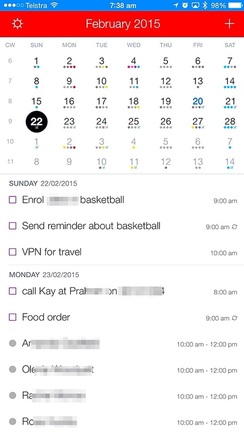
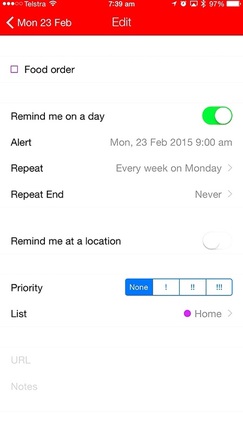
Recently, I posted information about an App that was free for a short period, called Week Calendar. This app is still my 'go to' app on my iPhone, for seeing my 'week at a view', even when my iPhone is in 'portrait' mode. Unfortunately, this is something that the standard iOS Calendar app does not provide - which is a great frustration for many iPhone users. My Week Calendar app allows me to easily view what's booked when, and see my availability at a glance - great when someone is asking for an appointment. Of course, it also provides other views of my calendar (day, month, year, today) should I need them, but I tend to stick to the 'week view' most of the time. Here is an example of my week in Week Calendar! 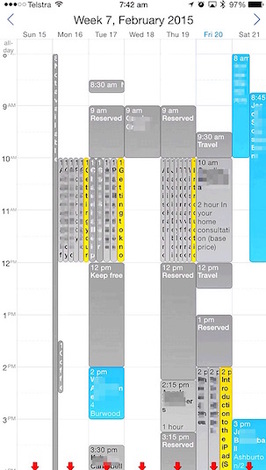 Fantastical In Fantastical, not only can you view the day's reminders, you can also 'tick off' the reminders as they are completed, or touch on a reminder to edit it from within the Fantastical App. This is so much quicker than opening up the Reminders app to go and modify (or tick off) any reminder. Now I have 3 favourite Calendar Apps! I now also use two other calendar apps on a regular basis, because I find that these apps offer features that neither Week Calendar nor the standard iOS Calendar apps offer. These two great calendar apps are
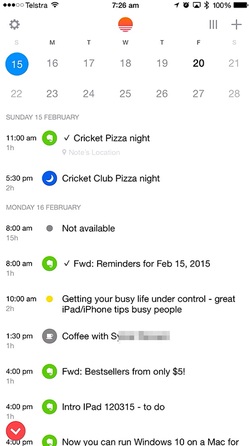
The reason these two apps are so useful to me is that they both integrate my Reminders into my Calendar. This means that, for each day, you can see a list of your events for the day, PLUS a list of any reminders that you have set for that same day! For someone like me who uses Reminders ALL THE TIME to keep on top of my busy life, being able to view my reminders in my calendar is such a massive help and has made a real difference to my days.
Sunrise Sunrise will also show you all your reminders from your iOS Reminders app, but it won't allow you to 'tick off' or edit them. I go to Fantastical when I want to do this. But the key reason I also use the Sunrise calendar is that it also includes my Evernote reminders - which, unfortunately, are not included in my standard iOS Reminders list, so are not included in the Fantastical list of reminders. I am hoping this might change over time, but for now I rely on Sunrise. Given that I am using Evernote more and more to set reminders about bills, school notices and other documents that I receive and store in Evernote, Sunrise is where I go to view my Evernote (and any other) reminders for the day.
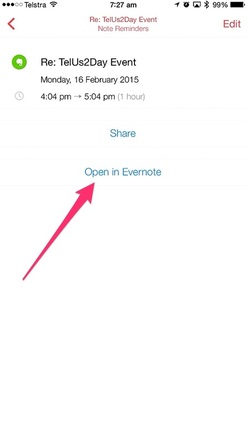
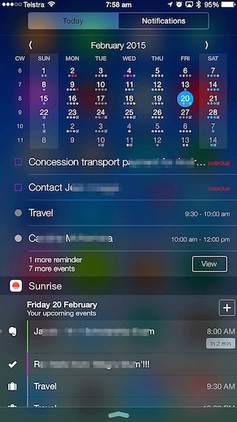
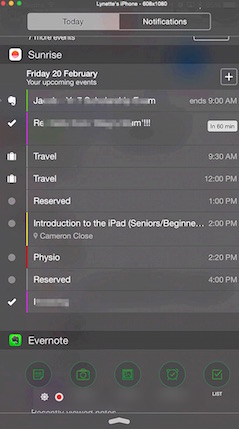
The other thing I love about Sunrise is that it allows me to 'Open in Evernote' any Evernote reminder that I see, so that I can immediately view the content of the Evernote Note, to view the bill, notice or other document of which I am being reminded. This digital recording of bills, notices and other important documents saves me scrounging through papers to find further information about the reminder - once again saving my sanity by giving me immediate access to the information I need to run my household and business. Widgets for these apps But wait, there's more! Both if these calendar apps have additional features called 'widgets'. Widgets are mini versions of apps that you can add to your Notification Centre. Here is what I see when I swipe down from above the top of my iPhone's screen to view my Notification Centre.
You can see here that I can see a preview of my day, via each of these apps.
If I want further information, I can tap on either to go directly to that app - giving me quick and easy access. The topic of how to set up these widget will be a topic for another day (sorry!). Do you want to become more organised through your technology? If you want to learn out about becoming more organised using Reminders, Calendars, Evernote, Widgets and more, why not come along to the iTandCoffee class called 'Bring your busy life under control using your iPad and iPhone'. Register you interest here, and we'll let you know when the next class series is scheduled.
I was talking to a friend just today, who had an old multi-page document that was only in paper form.
She needed to get this document into electronic form so that it could be edited in future, but didn't want to have spend the time to type it up from scratch. She asked me if I knew of way that she could scan those pages and then convert them into a file that has editable text - ideally Microsoft Word. This can be achieved using technology called OCR, or 'Optical Character Recognition'. There are many different software products that you can buy, that will perform this very useful function. Because the work she was doing was on a voluntary basis, my friend was keen to know if there was any way of doing this without buying a product. Luckily, there is! Google Drive can achieve this result for no cost, and with a minimum of fuss! Of course, you need a Google account to be able to use Google Drive. If you don't yet have one, Google accounts can be set up for free - here is the web page. Included below is a link to a good article that describes how to enable the OCR capability when uploading files into Google Drive. I just tried it out on an old document that I had scanned into Evenote yesterday and, it worked perfectly! A great time saver!
Updated Sat Feb 21st 2015 ...
But wait, there's another way that is really easy to achieve the same thing using a brand new feature of the App, OneNote  For those of you who may not yet have discovered YouTube or are not on Facebook, here are a couple of videos that have featured recently on Facebook - both of which have got everyone who saw them laughing out loud (lol'ing!). They feature two comediennes in a 'cooking' show that pokes fun at sugar free diets and the Thermomix revolution. They really show that YouTube can be such a wonderful source of entertainment! 13/2/2015 2 Comments Handy Hint for the week: How to change your Apple password (and view/manage your Apple account)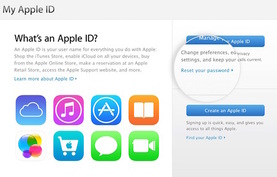 This is a frequent question that is asked by iTandCoffee clients.
How do you change the password associated with the Apple ID that you use for your iTunes or iCloud account, and how do you see all the settings and other information that is associated with your Apple ID? This week's Handy Hint* from iTandCoffee gives you both a video, and written instructions on this. (This hint is available to view until Friday 20th Feb 2015, after which only iTandCoffee Club member will be able to view it.) While I was out last night, I received a couple of emails from a friend and client that indicated to me straight away that her Gmail email account had been hacked. Here is what it looked like. 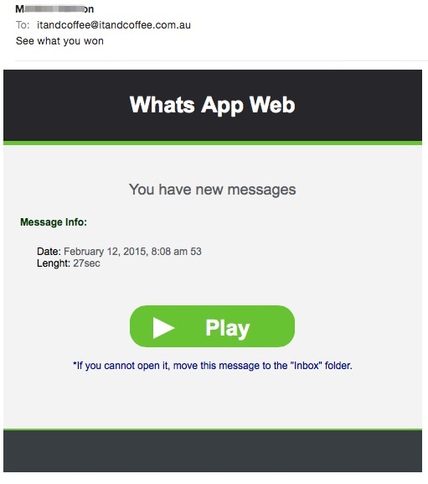 She called me as soon as she started receiving calls and texts from friends about these strange emails, and asked what she should do. My quick answer to anyone who thinks their email account might have been hacked is to IMMEDIATELY CHANGE YOUR PASSWORD. If you don't, you may give the hackers enough time to access your account and 'plant' things in it such as
Any delay in resetting your password may also allow the hackers to change your password, thereby completely locking you out of your account. This has happened to many people who have come to me. If you are unable to log on, here is where you go to try to recover your password: If you still are having trouble, try this link: Once you have gained access to your account and changed your password, check all of the above areas of your account settings to make sure nothing has been 'planted'. Here is a helpful article on this topic for anyone that needs further details. Of course, if you need help with any of this, contact iTandCoffee on 1300 885 420. But that's not where it ends If you have used the same email address and password combination for ANY other online accounts, you will need to (as quickly as possible) go and change the passwords on each of those accounts. Even if the hackers have been locked out of your Gmail account by you changing the account's password, they still have your old password and will most certainly try to access all other standard online accounts - like PayPal, Ebay, iCloud and iTunes, etc etc. So, if you have been hacked, don't delay - change those passwords immediately, and change them to different passwords for each online account. And if you need somewhere to store all your passwords, consider getting a Password Keeper / Password Safe app on your mobile device or computer. (See some articles about this topic below.) If you have a hacked Hotmail/Live/Outlook account, check out the article below for details of what to do. iTandCoffee content on this topic Resetting your Password/s
Storing passwords
Past warnings about scam emails 
I know I am a bit evangelical about Evernote, but it really has removed so much stress (and paper) from my life, and allowed me to (mostly) keep on top of my family life and all its organisational demands.
This week I received an email that contained the details of my Year 10 son's E-books from Jacaranda. This is an important email, as it contains all the details of how he can access his texbooks online. It is important that we keep this for the year - just in case anything happens to his school iPad, and we need to re-download these books. Now, I know that I could just save such an email in an email folder in my iCloud mail account. But these days, I do something different with this sort of important email. I email it directly into my Evernote, and tell it to place itself in my 'Education' Notebook. On my Mac, I choose the 'Send Again' option (or I 'Forward' it if I am on my iPhone or iPad) and I choose the email address of my Evernote account.* I change the Subject of the email to reflect the Title that I wish to use for the Evernote Note. I can specify the Notebook in which I wish the email to be placed by adding @notebook-name to the subject - in this case, I add @Education. (If I don't specify a Notebook name in the subject, it will just go into my default Notebook - which is called To Do. I regularly check my To Do Notebook and refile any Notes that are there into there applicable Notebook.) But wait, there's more! I can set a reminder for the Note/email as well. This is great when you have an email that you need to act on at a later date, and need a prompt - along with content of the email - presented to you on that date. To do this, I add a date with the format !yyyy/mm/dd, or I can use !tomorrow. This will result in a notification on that day on all my devices - ensuring that I don't miss it. *Now I can hear you asking: how do you determine your Evernote Account's email address? 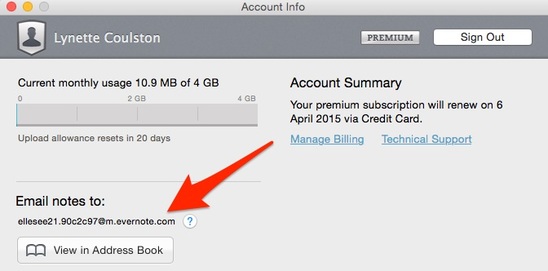
Below is an excerpt from the Evernote Knowledge Base article on this topic.
Just make a 'Contact' card in your online Address Book for this email address, and name it evernote. Then, every time you need to email something direct to Evernote, you just include the address evernote in the To, Cc, or Bcc. That way, you will never have to remember that cryptic email address provided by Evernote.
The Evernote Documentation is really great for topics like this - well laid out and easy to follow. I highly recommend that those of you who are interested in Evernote check it out. Here is the full web page on the topic of How to email into Evernote. Interested in finding out more?
Are you keen to find out more about how Evernote can make you a more organised person - and help save your sanity?
Come along to one of iTandCoffee's 2-hour information sessions about Evernote.
I just had to show you the app that I saw on App of the Day yesterday - one that was advertised as free (down from $3.79), in celebration of Valentines day. It is called iKamastra. App of the day describes it as "Ideal for igniting your imagination." Now, you've just got to laugh at that hilarious use of the 'i' in front of a name. There really is an app for everything! Here's what App of the Day had to say about the app - I just had to screen shot this one on my iPhone to share with you. 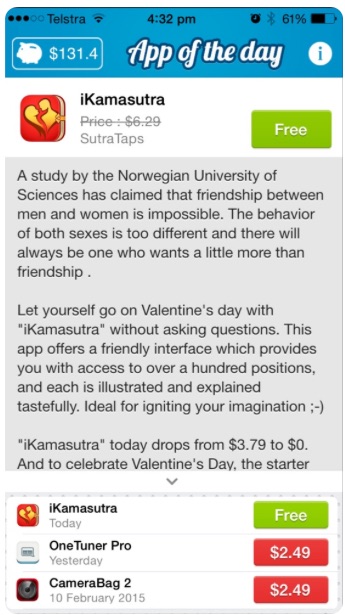 If you are seriously interested in this app, get it here it is in the App Store! (It might only be free until middle of Friday 13th, as it appeared in App of the Day on Thursday.) |
What's on at iTandCoffee ?Below is our list of videos, classes and other events that are coming up soon.
Videos shown are offered for eligible members of the iTandCoffee Club. If you have questions, why not join fun and informative 'user group' meetings, held once a month. All iTandCoffee classes are run as online classes (using Zoom), which means you can attend from anywhere. |



27 Sycamore St, Camberwell, Victoria Australia
Call 1300 885 420
to book an appointment or class, or to enquire about our services and products

|
SENIORS CARD WELCOME HERE:
Seniors Card holders qualify for a 10% discount on all classes booked and paid for online (excludes PTT sessions and classes already discounted during COVID-19 crisis). To activate the discount at the time of booking, select Redeem Coupon or Gift Certificate and enter 10OFFSEN before selecting Pay Now. |

© 2012-2024 iTandCoffee Pty Ltd. All rights reserved ACN: 606 340 434