
|
With our current program of school sessions for parents (teaching about parental controls on Apple mobile devices), we regularly come across families that suffer a nasty condition called 'iCloud Confusion'. So, here is a video that discusses this condition and give some quick tips about what to do to cure it.
0 Comments
 A client who visited iTandCoffee last week had a frustrating problem with her much-loved scanner, an Epson DS-560.
This scanner really is amazing - able to scan two sides at once and is SO fast. If you have heavy-duty scanning needs, it's really worth considering. However, our client found that, as soon as she upgraded her Mac to High Sierra, the Scan app associated with her Espon scanner would crash every time she tried to change the destination location for her scans 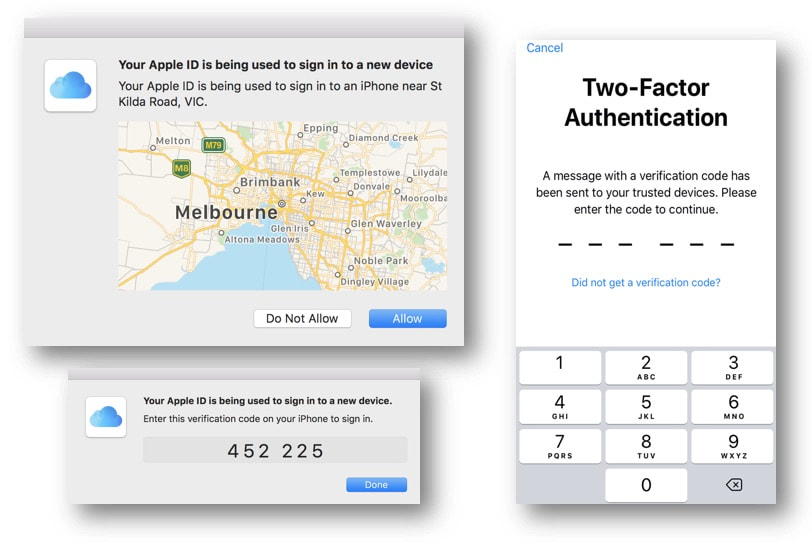 We covered this topic in an article in late 2016, but figured it's time to repeat it - given how many times we are asked about it at iTandCoffee.
If you have turned on a security feature for your Apple iCloud/iTunes account - a feature called two-factor authentication - you will find that, whenever you sign in to your Apple account on a new device or from a web browser, you will get a message popping up on another device. 16/3/2018 0 Comments Making a backup of your Contacts and Calendar - and how to 'restore' if something goes wrong For most of us, our list of Contacts and our Calendar events are so important - and we don't want to lose them if something goes wrong! Of course, if you are using iCloud, Gmail, Hotmail, Outlook, Yahoo, Exchange or some other email service to sync your mail, you do have your Contacts and Calendar always available if something goes wrong with your device. But what if something goes wrong with that 'cloud-based' set of contacts and calendars. What if you accidentally delete a heap of your contacts or events? They have disappeared from all your devices, but is there a way to retrieve them? 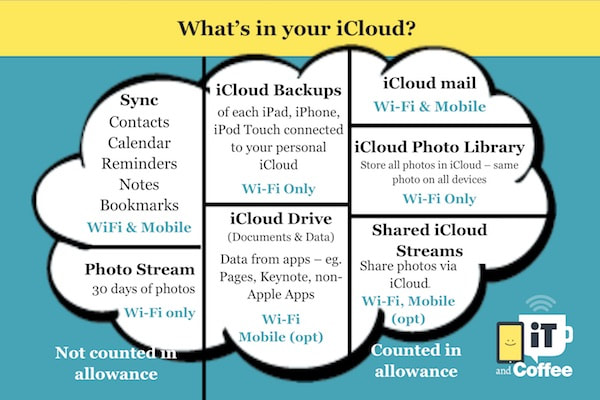 iCloud Photo Library - and iCloud in general - is one of the areas that iTandCoffee covers multiple times per week in client appointments and classes. What is iCloud Photo Library? What does it do? Should you use it? What are the advantages and disadvantages? What is the cost? What should you do if you turned it on and now don't want to use it? We have the answers to these questions! To address these questions, we have recorded a new video tutorial and added it to the 'Understanding and Using iCloud - Live Class Video' web page. This means that those of you who are iTandCoffee Club members with Online and Premium membership, and anyone who has purchased access to the 'Understanding and Using iCloud' class videos, will now be able to gain a better understanding of iCloud Photo Library. (See below for details of how to purchase access to these videos.) Non-members, or members with Original, Basic or Plus membership plans, can purchase access to these videos here - for just $10. (Club members can receive a 20% discount by using the applicable coupon code. Visit your membership home page to obtain this code.) Understanding and Using iCloud - Class VideosWatch recording of an actual iTandCoffee class. This class unravels the mystery that is iCloud and includes the following topics. Also included is a tutorial video discussing iCloud Photo Library.
Membership has great benefits! Are you interested in learning more about The iTandCoffee Club and the great content, services and members-only offers that membership brings?
However, there are also some major disadvantages this feature:
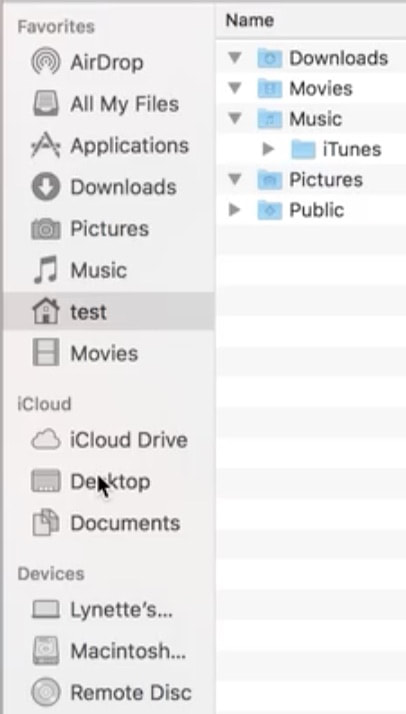
Personally, I don't want my Desktop to be syncing to my iCloud as I use it as a temporary storage area for screenshots and other files that I will not be keeping longer term. I also want to be able to be selective about what Documents content I sync to any Cloud storage solution. iCloud Drive is nowhere near as mature a cloud storage product as Dropbox, OneDrive or Google Drive. I mainly use OneDrive for my 'cloud' storage, but also have Dropbox. How do you get your Desktop and Documents out of iCloud Drive? The trick is how to undo this setup once it has occurred. It is a little confusing and requires several steps. You must go to your System Preferences -> iCloud -> iCloud Drive, and 'untick' Desktop & Documents Folders. 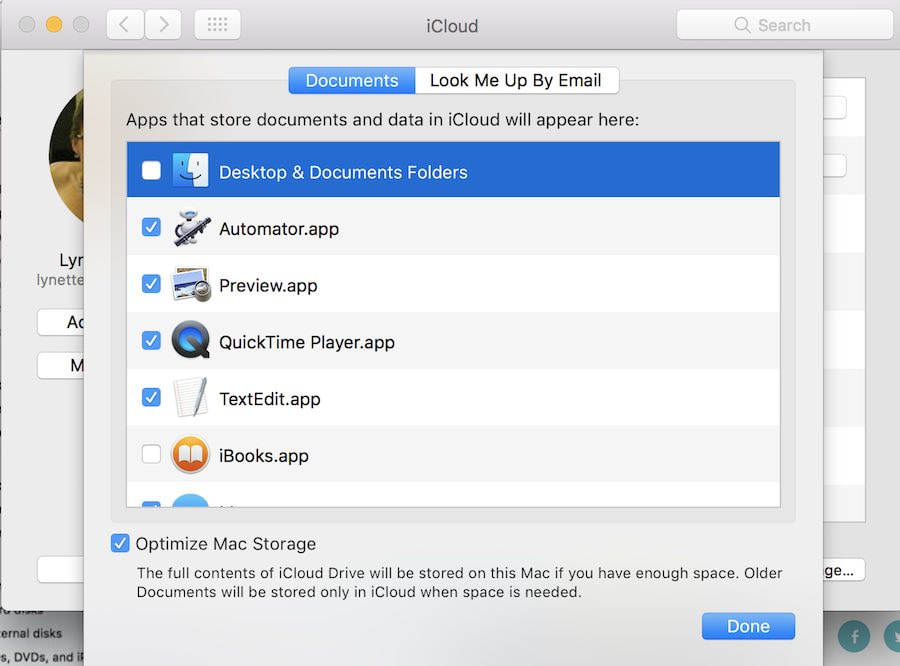 It doesn't end there, however. There are a couple more steps to follow to get your Desktop and Documents out of iCloud and back to where they used to be. We have recorded a video tutorial of how to get your Desktop and Documents folders out of iCloud. This tutorial is now available to all members of The iTandCoffee Club. You must have a club login to access this tutorial. (Find out how to Join the Club here ») If you are not brave enough to undertake this change yourself, iTandCoffee can help. Appointment bookings can be made here, or just call 1300 885 420. Would you like to understand your Mac better, and get more from it?Learn more about Files, Folders and Finder on the MacWe have recently re-recorded the Files Folders and Finder class from the Getting to know your Mac class series, creating a great set of easy to follow video tutorials about how to organise and manage all your files and folders on your Mac. The list of topics is shown below. These videos are now available to anyone who has either the Online or Premium iTandCoffee Club membership. (Find out more about The iTandCoffee Club here ») Those of you without membership can purchase this set of videos for only $25 (a great price, considering classes cost $55 - and that you can watch these videos as many times as you like!). Find out more about how to gain access to these videos here » Try before you buy! Would you like to first get a taste of the style of these tutorials? The first first two in the list below are unrestricted - no membership or purchase is required to view them. Check them out and see what you think. 2-1 Introduction and concepts (unrestricted) 2-2 Opening and Using Finder (unrestricted) 2-3 The Finder Sidebar 2-4 Main Finder Folders 2-5 Viewing your Files and Folders - List View 2-6 Viewing your Files and Folders - other Views 2-7 Arranging and Sharing Finder Content 2-8 Customising Finder's Toolbar 2-9 The Path Bar and Status Bar 2-10 Previewing Files (Quick Look) 2-11 Opening a file 2-12 Creating Folders 2-13 Reorganising your files and folders 2-14 Selecting Multiple Files 2-15 Create Folder from Selection 2-16 Reorganising using Drag and drop 2-17 Copy, Paste, Move - with Command Key 2-18 Copy, Paste, Move - with Right Click 2-19 Saving files from other applications 2-20 Get Information about a file or folder 2-21 Setting up Favourite Files and Folders 2-22 Searching for files and folders 2-23 Smart Folders, Saved Searches 2-24 Desktop and Documents in iCloud Drive 2-25 Minimising multiple app windows 2-26 Finder Keyboard Shortcuts Are you interested in other 'Getting to Know your Mac' topics? We have also re-recorded the first class of the Getting to know your Mac series - 'A Guided Tour of the Mac'. 13 short videos introduce you to your Mac and all the key areas and features. You can sample the first two of these videos to see what you think. 1-1 Introduction, talking terminology (unrestricted) 1-2 Starting, Stopping, Restarting, Sleeping (unrestricted) 1-3 System Preferences 1-4 The Finder 1-5 The Desktop 1-6 The Dock 1-7 Menu and Status Bars 1-8 Siri and Notification Centre 1-9 The Mac App Store 1-10 Launchpad 1-11 Mission Control and Multiple Desktops 1-12 The Dashboard 1-13 Dealing with a mis-behaving Mac or App The rest of the class series will be available very soon, so stay tuned! If you have any queries about these videos, don't hesitate to contact iTandCoffee on 1300 885 420 or at enquiry@itandcoffee.com.au. 23/7/2017 0 Comments A great way of sharing your photos with others - no emailing or texting required! At the July Free Friday, during the information session on 'The Cloud' and 'iCloud', we touched on the topic of using iCloud to share albums of photos. We didn't have a lot of time to cover this in any detail during this session, so this week we have included a couple of Handy Hints for club members - one for Mac, and one for iPad and iPhone - on how to use iCloud Shared Albums. What is an "iCloud Shared Album"?An iCloud Shared Album is an album that you create in the 'Shared' area of your Photos app on the Mac or iPad/iPhone. This 'Shared' area is an area of your iCloud that you can choose to 'turn on'. If you don't see it, you may not have chosen to enable it. Albums that are created in this area can be then shared with other iCloud users, or even with those who don't have iCloud. The great benefit of iCloud Shared Albums is that, by just adding photos to a shared album, others you nominate will be able to see the photos - without you have to text, email or use other ways of 'messaging' the photos to them. While there are other 'cloud storage' options for your photos, the benefit of iCloud Shared Albums is that it is integrated with your Photos app - so that you can see all photos in one app, instead of having to use different apps (as would be the case if you share photos using another cloud service). Members can find out more about iCloud Photo Sharing by selecting the below buttons. Not yet a member of The iTandCoffee Club? Find out more here ». Related Handy Hints and ArticlesHandy Hints - iPad and iPhone
Handy Hints - Mac
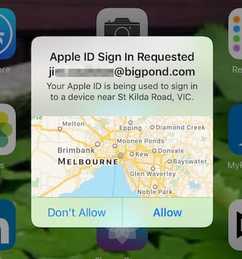 This question has been asked a few time this week, so I thought it worth re-publishing an article that was written in December last year.
In fact, it's an article that I wrote for my own Mum, who was really confused over messages appearing on her iPhone saying someone from 'St Kilda Rd' was trying to access one of her devices. Here is a link to the article, for anyone suffering the same confusion. 11/7/2017 0 Comments What to do when your Apple password is rejected over and over - even though you know it's correct! This has been a common problem encountered by so many iTandCoffee clients. In fact, we have already had seen two clients this week who have had the problem (and it's only Tuesday!). Apple just won't accept my password!The issue arises when 'two-factor authentication' has been enabled on an iOS 10 (or MacOS), but where other devices that use the same Apple ID are running an older version of iOS or OS-X. The older versions of iOS and OS-X don't 'understand' the newer security steps that two-factor authentication bring. As soon as two-factor authentication is enabled on one of their devices, our clients have found that their password keeps getting rejected on other devices - even though they know that the password is correct. They get a message popping up on their 'up-to-date' iOS 10 device (or on their 'up-to-date' Mac) saying that someone is trying to access their account, with an 'Allow' (or 'Don't Allow') option. When they choose 'Allow' to get the 6-digit two-factor authentication code, they find themselves stuck - because the device that rejected their password does not offer a place to enter this 6-digit code. Instead, it just tells them that their password is incorrect. Fear not! There is a solutionFortunately, there is a relatively easy fix for this problem. We covered this issue in our February 2017 Handy Hint newsletter. (Subscribe to our great Newsletter here so that you get to see FREE tips like this ») This tip has since been moved to our Handy Hint Library, which is for iTandCoffee Club members. Here it is - if you are a Club member, just select the link to view the solution. Not yet a member of The iTandCoffee Club?Contact iTandCoffee on 1300 885 420 if you need help to solve this problem. If you are 'not so local' and are not yet a member, why not join The iTandCoffee Club to gain access to our huge library of great tips like this. Related Handy Hints and ArticlesHandy Hints (for iTandCoffee Club members only)
Blog Articles (no membership required)
 This one comes up in visits with iTandCoffee clients every single week. What do you do when you get that message that says that your iCloud storage is full. What is in your iCloud, how do your remove stuff that doesn't need to be there and how do you upgrade your storage if you end up needing to. We have covered this one previously as part of our Handy Hint Newsletter, but it is time to include it again - given that the relevant options have moved since we last covered it. This is a members-only hint for members of The iTandCoffee Club
|
What's on at iTandCoffee ?Below is our list of videos, classes and other events that are coming up soon.
Videos shown are offered for eligible members of the iTandCoffee Club. If you have questions, why not join fun and informative 'user group' meetings, held once a month. All iTandCoffee classes are run as online classes (using Zoom), which means you can attend from anywhere. |


27 Sycamore St, Camberwell, Victoria Australia
Call +61 444 532 161 or 1300 885 320
to book an appointment or class, or to enquire about our services and products

|
SENIORS CARD WELCOME HERE:
Seniors Card holders qualify for a 10% discount on all classes booked and paid for online (excludes PTT sessions and classes already discounted during COVID-19 crisis). To activate the discount at the time of booking, select Redeem Coupon or Gift Certificate and enter 10OFFSEN before selecting Pay Now. |

© 2012-2024 iTandCoffee Pty Ltd. All rights reserved ACN: 606 340 434